Cafans Journal
Stories & FindsThe CAFANS Guide to Spreadsheets for Smarter Shopping and Product Comparison
If you have ever tried to track prices across a dozen tabs or lost a good deal in a sea of screenshots, this CAFANS guide is for you. CAFANS stands for Compare, Analyze, Filter, Anchor, Negotiate, and Select — a simple six-step workflow that turns an ordinary spreadsheet into a decision-making tool. Whether you are a casual buyer or work with an agent shopping spreadsheet every day, the principles below will help you buy better and waste less time.
Why a Spreadsheet Beats a Wish List
A wish list tells you what you want. A shopping spreadsheet tells you what is worth buying. By putting every option into rows and every attribute into columns, you create a single source of truth. Instead of relying on memory, you rely on data — price, shipping cost, warranty, seller rating, and availability all live side by side. This is the foundation of any serious product comparison spreadsheet and the reason so many professional buyers keep one open at all times.
Step 1: Compare — Build the Master Sheet
Start with a clean spreadsheet template. Create columns for product name, model number, unit price, currency, shipping fee, estimated tax, seller, rating, return window, and notes. Add a unique identifier column so you can match rows across suppliers. Use data validation to restrict currency and rating fields, and apply conditional formatting to flag items above your budget. A well-structured comparison table at this stage saves hours later, and it keeps your spreadsheet guide honest: every claim has a cell behind it.
Step 2: Analyze — Let Formulas Do the Math
Raw prices are misleading. Add calculated columns for landed cost (price plus shipping plus tax), cost per unit, and discount percentage. Use VLOOKUP or XLOOKUP to pull reference prices from a second tab, and SUMIF to total spending by category. Pivot tables turn your data set into a quick summary of average price by brand or seller. If you track deals over time, add a timestamp column and a price history tab so you can spot seasonal patterns instead of guessing.
Step 3: Filter — Cut the Noise
With dozens of rows, filtering is essential. Apply autofilter to hide out-of-stock items, then use slicers to switch between categories. Named ranges make your filters reusable, and a drop-down list lets you toggle between “budget,” “mid-range,” and “premium” tiers. Keep a separate shortlist sheet for the finalists so your master sheet stays complete. This is where a product comparison spreadsheet earns its keep: three clicks and the weak options disappear.
Step 4: Anchor — Record the Baseline
Every negotiation needs an anchor. In your sheet, add columns for MSRP, street price, and target price. Note the reference price you found at the best retailer and the date you found it. Use a freeze pane to keep headers visible while you scroll, and cell comments to record where each number came from. An anchored baseline keeps you from overpaying in the heat of the moment, and it makes any agent shopping spreadsheet far more persuasive when you present it to a supplier.
Step 5: Negotiate — Prepare the Evidence
Agents and bulk buyers live in this step. Build a tab with supplier quotes, MOQ (minimum order quantity), lead time, and payment terms. Use cross-tab references so a change in quantity automatically updates the total. Add a scenario table to test “what if” discounts, and a break-even calculation to see how many units you must sell to recover costs. If you are sourcing on behalf of others, an agent shopping spreadsheet with a clean audit trail builds trust — every quote is dated, sourced, and comparable.
Step 6: Select — Decide and Document
Finally, rank the shortlist. Use a weighted score formula: assign weights to price, quality, delivery, and warranty, then calculate a total per row. A heat map via conditional formatting shows the winner instantly. Record the final choice, the order date, and the purchase order number in a decision log. Set a reminder for the return window and warranty expiry. Archive the sheet as a historical record so future comparisons start from experience rather than scratch.
Practical Tips for a Cleaner Sheet
Keep one row per product and one column per attribute — never merge cells in data regions. Use consistent naming and avoid trailing spaces. Protect formula columns with sheet protection, and back up the file with version control in the filename (for example, shopping-compare-v3.xlsx). Share read-only links when collaborating, and use comments rather than editing someone else’s numbers. A tidy spreadsheet is a fast spreadsheet.
Common Mistakes to Avoid
Do not compare sticker prices without landed cost; shipping and tax often reverse the ranking. Do not trust a single source — cross-check at least two retailers. Do not let the sheet grow without structure; prune old rows into an archive tab. And do not skip the notes column: future you will not remember why a row was rejected.
Conclusion
The CAFANS method — Compare, Analyze, Filter, Anchor, Negotiate, Select — works because it matches how shopping actually happens. Start with a simple spreadsheet, add formulas as you grow, and keep the structure consistent. Whether you maintain a personal shopping spreadsheet, a detailed product comparison spreadsheet, or a professional agent shopping spreadsheet, the same discipline applies. Follow this spreadsheet guide, and every purchase becomes a documented, defensible decision rather than a guess.
Editor's selection
Popular Products

Balenciaga T-Shirt | Wheebuy spreadsheet | BBDBuy spreadsheet | Hubbuycn spreadsheet - 157698

RF.B Cotton Wool Short Zip Jacket | Rizzitgo spreadsheet | Fansbuy spreadsheet | Hipobuy spreadsheet - 136614

FD Casual T-Shirt | Sugargoo spreadsheet | Lovegobuy spreadsheet | OOTDBuy spreadsheet - 140069
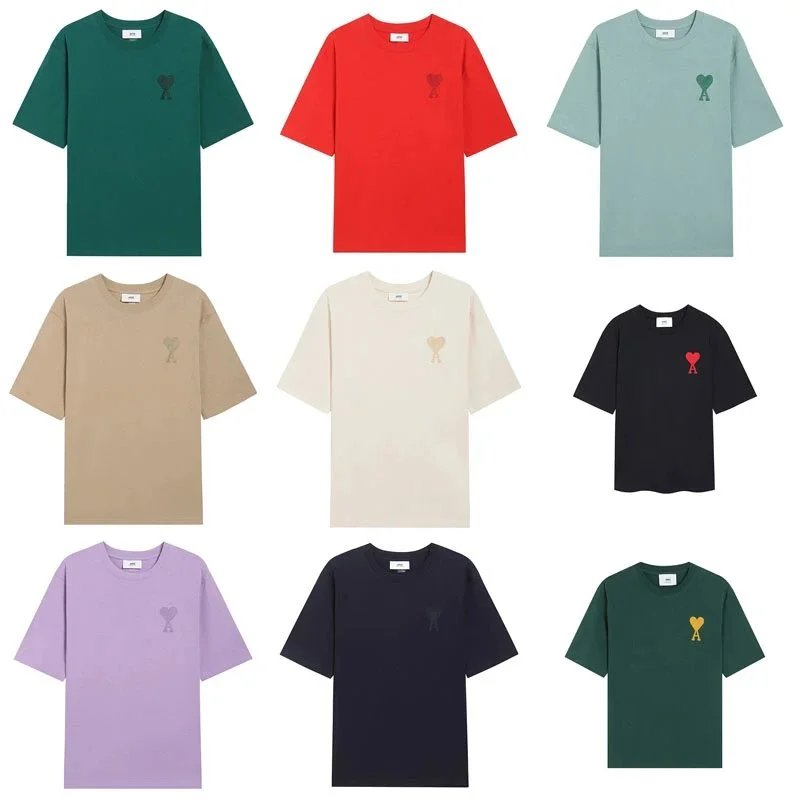
AMI Paris T-Shirt | BBDBuy spreadsheet | Fansbuy spreadsheet | OOTDBuy spreadsheet - 147186

Stone Island Shorts | Superbuy spreadsheet | Oopbuy spreadsheet | Kakobuy spreadsheet - 145029

CP Company Pants | Oopbuy spreadsheet | Lovegobuy spreadsheet | Superbuy spreadsheet - 149545
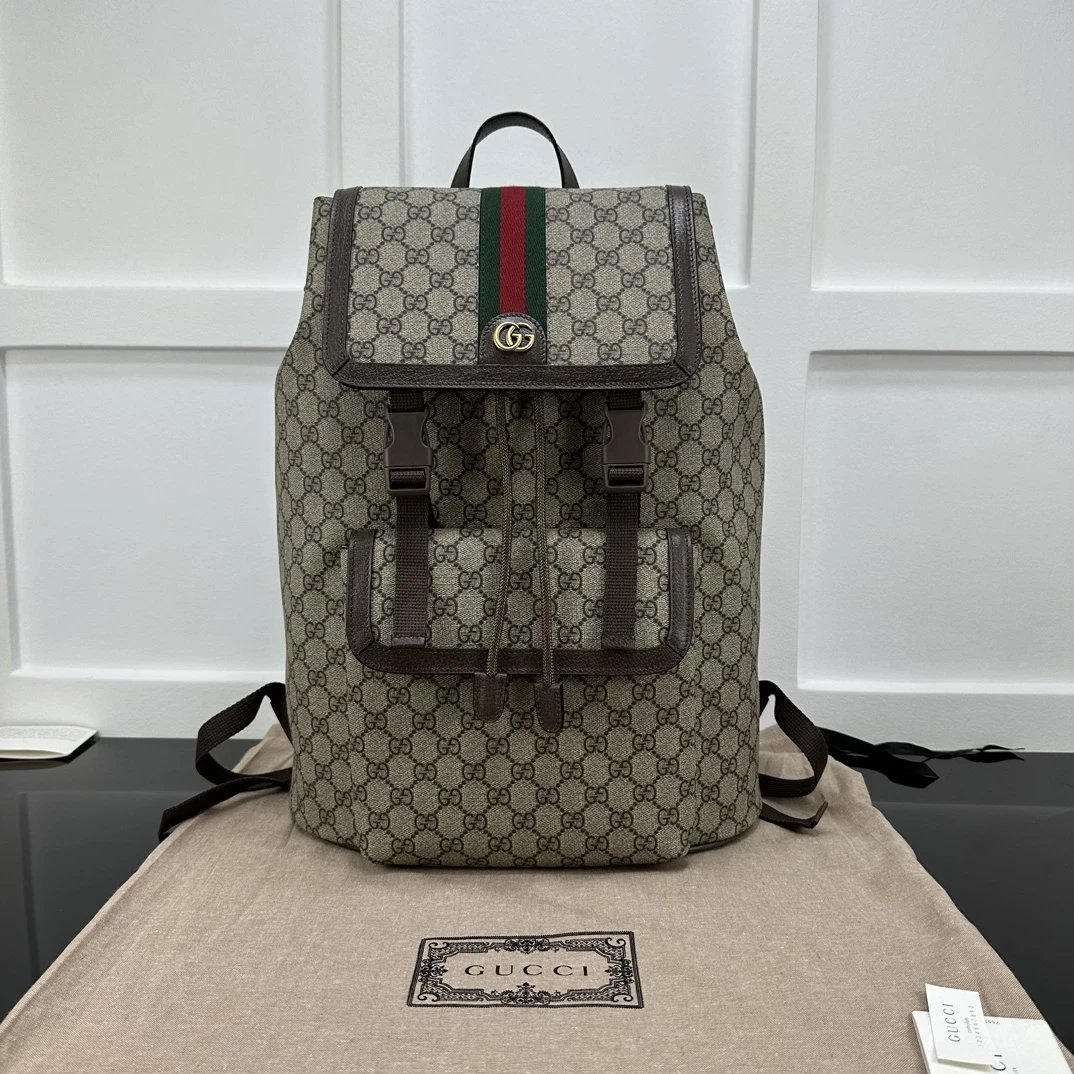
Brown Monogram Flap Backpack with Front Pockets, Style | Oopbuy spreadsheet | Fansbuy spreadsheet - 154095
