Cafans Journal
Stories & FindsMyCNBox Guide: Using the CAFANS Spreadsheet for Smarter Shopping
Navigating China’s vast online marketplaces can feel overwhelming, especially if you are shopping from abroad. That is where MyCNBox comes in. This MyCNBox guide explains how to use the CAFANS system — and specifically the MyCNBox spreadsheet — to compare products, track prices, and make confident buying decisions. Whether you are a first-time buyer or a seasoned reseller, this MyCNBox shopping guide will help you get the most from your MyCNBox product links.
What Is CAFANS and Why Does It Matter?
CAFANS is a community-driven framework for organizing product research. Instead of scrolling endlessly through listings, you rely on a structured sheet that collects item names, prices, seller ratings, shipping estimates, and quality notes. The MyCNBox spreadsheet is the practical home for this data. Each row represents a product, and each column captures a detail that matters: price, weight, category, seller reputation, and link status.
The term CAFANS itself is often used as shorthand for a catalog-and-find approach. A good CAFANS guide teaches you to treat the sheet as a living document. When a seller changes a price, you update the row. When a batch arrives with defects, you flag it. Over time, your sheet becomes a personal database that saves hours of research.
Setting Up Your MyCNBox Spreadsheet
Start by opening the MyCNBox spreadsheet template. Keep the header row clean and consistent: Product Name, Category, Unit Price, MOQ, Weight, Seller Rating, Link, Notes, and Status. Do not overload it with too many columns at the beginning. A simple layout is easier to maintain.
Next, create a separate tab for MyCNBox product links. Paste original URLs and add a short label so you can recognize each item later. Broken links are common in cross-border shopping, so check them weekly. If a link dies, mark the row as inactive rather than deleting it — the history is useful.
Use color coding sparingly. For example, green for verified suppliers, yellow for items awaiting samples, and red for delayed shipments. This visual layer makes the sheet readable at a glance.
How to Use the Sheet as a Shopping Guide
A MyCNBox shopping guide is only useful if it reflects real buying behavior. Follow these steps:
- Shortlist first. Add five to ten candidates per category before comparing prices.
- Record shipping weight. Weight often changes the final cost more than the listed price.
- Note seller history. A low price from an unrated seller is not a bargain.
- Update after every order. Add actual delivery time and packaging quality.
- Review monthly. Remove stale rows and refresh links.
This discipline turns a simple sheet into a decision tool. Many users report that after three months of consistent updates, their return rate drops because they stop ordering from unreliable sources.
Organizing Product Links Effectively
MyCNBox product links should be stored with context. A bare URL tells you little. Add the product title, the date you saved it, and the price at that moment. If the same item appears from several sellers, group them in one row with multiple link columns. This makes price comparison instant.
For mobile shoppers, keep a shortened link column so you can open items quickly. For desktop work, use the full URL. A clean link system prevents the classic problem of losing a good supplier because you cannot find the original listing.
Common Mistakes to Avoid
New users often treat the MyCNBox spreadsheet as a one-time list. It is not. It is a working document. Avoid these traps:
- Copying prices without dates — you will not know when they changed.
- Ignoring currency conversion — note the exchange rate you used.
- Mixing categories in one tab — use separate tabs for electronics, home goods, and accessories.
- Skipping notes on packaging — this matters for fragile items.
Also, avoid sharing edit access too widely. One careless edit can corrupt a carefully built comparison table. Use view-only links for collaborators who only need to browse.
Building a Repeatable Workflow
The strongest MyCNBox guide advice is to build a routine. On Monday, review new product links. On Wednesday, update prices and stock status. On Friday, export a backup. This rhythm keeps the sheet accurate without becoming a burden.
Pair the sheet with a simple folder structure for screenshots and invoices. Name files by date and order number so you can cross-reference later. When a dispute arises, this documentation is invaluable.
Related Terms You Will See
As you explore the CAFANS ecosystem, you will encounter terms such as sourcing sheet, price tracker, supplier list, product catalog, order log, bulk order, sample request, quality check, shipping estimate, customs declaration, warehouse consolidation, agent service, link checker, comparison table, category tab, stock status, seller rating, unit cost, minimum order, delivery time, packaging quality, return rate, exchange rate, backup file, view-only access, product research, buying decision, cross-border shopping, and marketplace listing. Keeping these concepts in mind helps you structure your MyCNBox spreadsheet more effectively.
Final Thoughts
The CAFANS approach is simple: organize before you buy. With MyCNBox, the MyCNBox spreadsheet becomes your central workspace. Use this MyCNBox shopping guide to set up clean columns, maintain MyCNBox product links, and review your data regularly. A well-kept sheet will not eliminate every risk, but it will make your shopping more transparent, comparable, and efficient.
Editor's selection
Popular Products
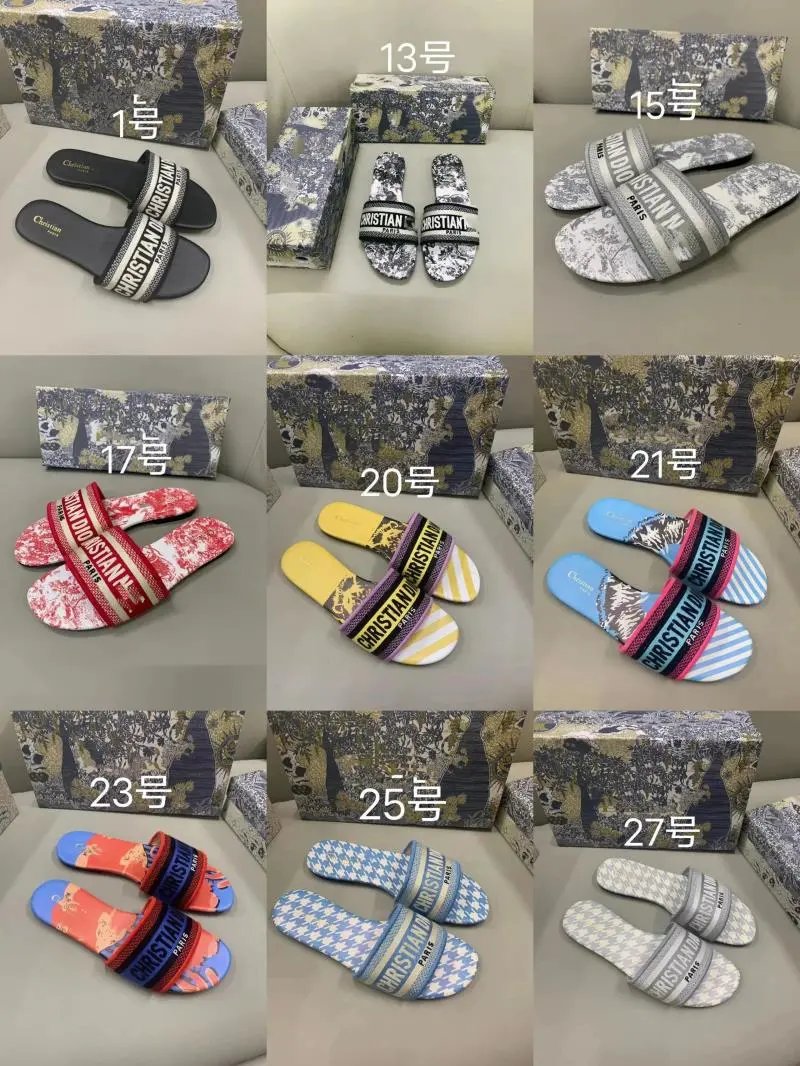
DS Slippers | Wheebuy spreadsheet | LoongBuy spreadsheet | Lovegobuy spreadsheet - 135724

Accessories | UIDBuy spreadsheet | Fishgoo spreadsheet | Oopbuy spreadsheet - 140922
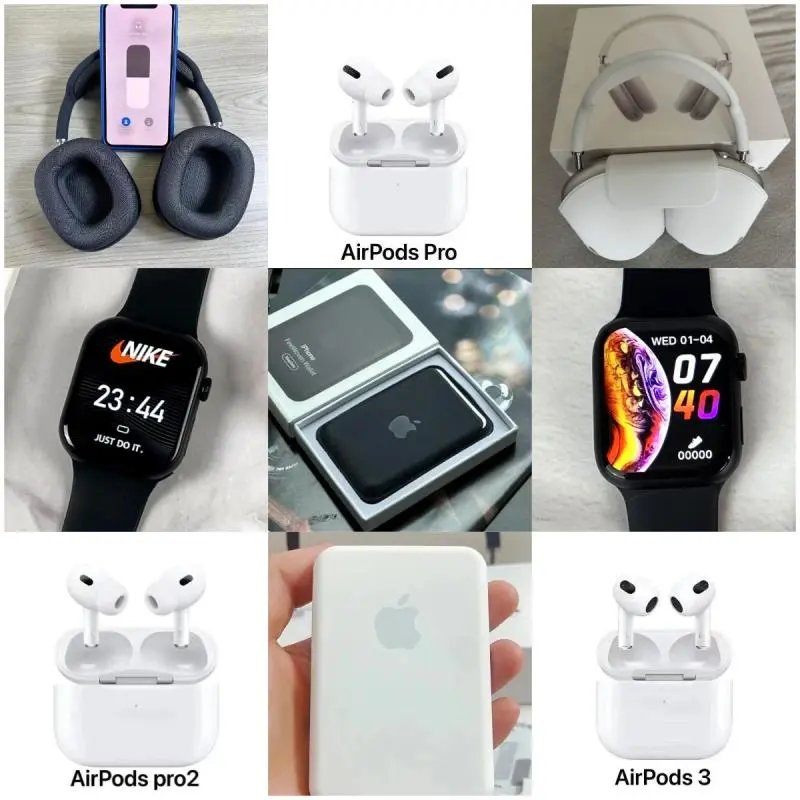
Catalog Item TF25 Digital Electronics | UIDBuy spreadsheet | Fishgoo spreadsheet - 141140
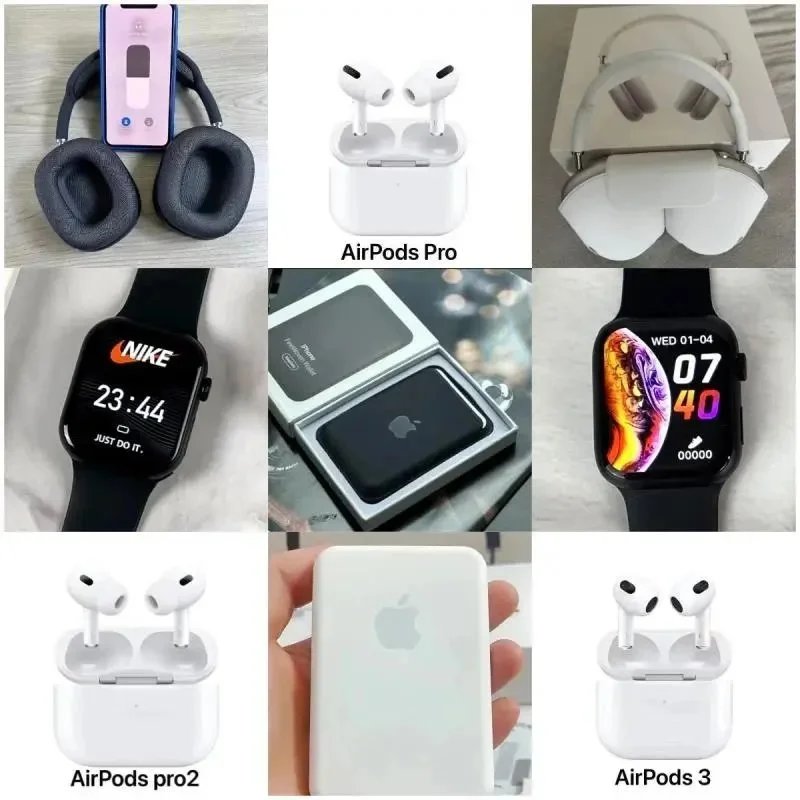
Catalog Item LL55 Digital Electronics | Superbuy spreadsheet | Fishgoo spreadsheet - 138885
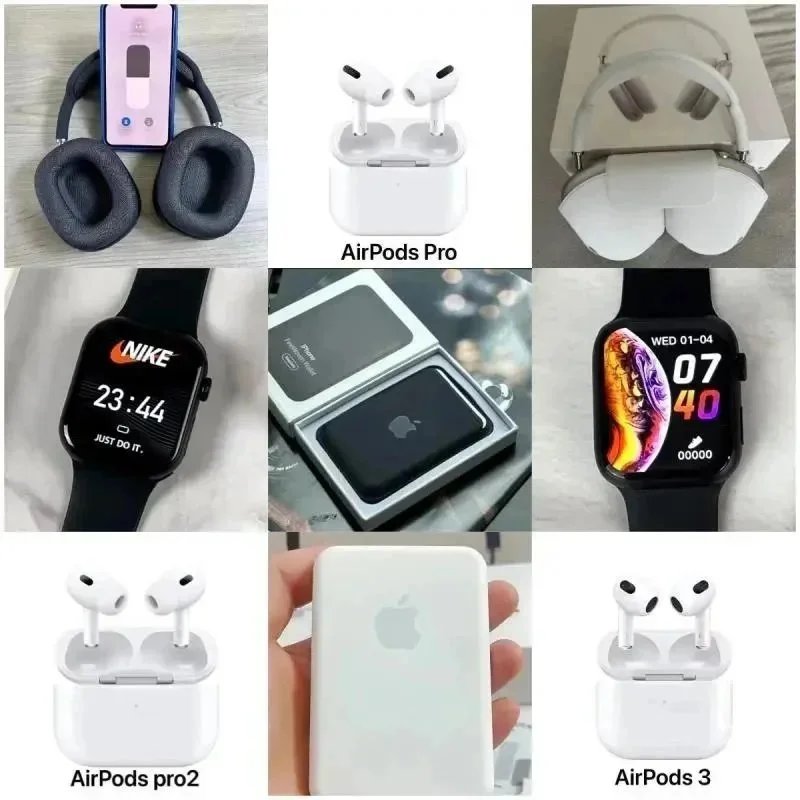
Headphones XB22 Headphones and Electronics Selection | LoongBuy spreadsheet | Hubbuycn spreadsheet - 136779
XIAOTEJI Apple-Compatible Chargers and Accessories | Sugargoo spreadsheet | iTaoBuy spreadsheet - 142697
AP Charging and Electronics Accessories Selection | Fishgoo spreadsheet | Sugargoo spreadsheet - 149985
