Cafans Journal
Stories & FindsUSFans Spreadsheet Guide for English-Speaking CAFANS Shoppers
USFans Spreadsheet Guide for English-Speaking CAFANS Shoppers
If you are a CAFANS shopper who reads English, the USFans spreadsheet is the single most useful reference you can keep open while browsing. This USFans guide explains what the spreadsheet is, how to read it, how to use USFans product links safely, and how to combine the USFans shopping guide with the USFans spreadsheet guide so every purchase decision is based on real data rather than guesswork.
What the USFans Spreadsheet Actually Is
The USFans spreadsheet is a structured reference table that collects product information in one place. Instead of opening dozens of tabs, you scan a row and get the essentials: item name, category, size or specification, reference price, available colorways, and a QC (quality check) note where available. For CAFANS users, the spreadsheet acts as an index — a map of the catalog — while the actual order still happens through the normal USFans shopping flow.
Think of it as three layers working together. The USFans spreadsheet gives you the list. The USFans guide explains the rules. The USFans product links take you to the item page. Keep those three roles separate and the whole process becomes simple.
How to Read the Columns
A typical USFans spreadsheet guide walks you through the same core columns. Here is what to look for, in order:
- Item ID / row number — your anchor when asking questions in a community chat.
- Product name — usually descriptive rather than a brand name, so read the title carefully.
- Category — the fastest way to filter. Category tags matter more than row order.
- Size / spec — sizing charts, weight, volume, or model number depending on the category.
- Price reference — an estimate, not a locked quote. Currency and batch can change it.
- QC status — notes such as available, out of stock, updated batch, or agent restriction.
- Link column — where the USFans product links live.
New readers often skip the QC column. Do not. It is the column that saves the most time and the most money.
Using USFans Product Links Correctly
USFans product links are the bridge between the spreadsheet and the order page. Three habits keep them reliable:
- Open the link before trusting the row. Prices, stock, and options change; the spreadsheet is a snapshot.
- Match the variant. A row may list five colors and three sizes, but only some combinations are actually in stock.
- Check the seller and shipping estimate. Two links for the same item can differ in shipping cost and delivery window.
If a link fails, do not assume the item is gone. Search the item name from the row, or ask in the community using the row number. Broken links are usually a sign of a moved listing, not a discontinued product.
A Practical USFans Shopping Guide Workflow
Here is a repeatable routine that English-speaking CAFANS shoppers can follow in about fifteen minutes per session:
- Filter first. Open the spreadsheet, choose two or three categories you actually need, and hide the rest.
- Shortlist five rows. Note item IDs and prices in a small text file.
- Verify each link. Confirm stock, variant, and shipping estimate.
- Compare landed cost. Add item price plus shipping plus any service fee before deciding.
- Record the decision. Save the row number, the variant you chose, and the date. This is your personal audit trail.
This workflow turns the USFans spreadsheet guide from reading material into an actual habit. The spreadsheet stops being a wall of rows and becomes a checklist.
Common Mistakes to Avoid
Most frustration comes from a handful of recurring errors. Treating an old screenshot as current data is the biggest one — always reopen the live sheet. Assuming a low reference price includes shipping is another; shipping is calculated separately and varies by weight and destination. Ignoring size charts causes avoidable returns. And copying a link into a chat without the row number makes it impossible for others to help you.
One more: do not treat the spreadsheet as a brand catalog. Entries are described generically, and the same row may be updated with a different batch over time. Read the description, not the assumption.
Working With the Community
CAFANS communities are where the spreadsheet stays accurate. When you find an outdated price, a dead link, or a new size option, report it with the row number and a screenshot. When you ask a question, include the item ID, the variant, and your destination country. Vague questions get vague answers; precise questions get fixed rows.
Also respect the division of labor: the USFans spreadsheet is for reference, the USFans guide is for rules, and support channels are for order problems. Posting an order issue in a spreadsheet thread slows everyone down.
Quick Reference Checklist
- Open the live sheet, never a saved copy.
- Filter by category, then shortlist five rows.
- Open every USFans product link and confirm variant and stock.
- Calculate landed cost including shipping and fees.
- Log row number, variant, and date.
- Report outdated rows with evidence.
- Re-check the USFans spreadsheet guide after any catalog update.
Used this way, the USFans spreadsheet becomes a decision tool rather than a browse list. The USFans shopping guide keeps the process disciplined, the USFans product links keep it accurate, and the USFans spreadsheet guide keeps it repeatable. For English-speaking CAFANS shoppers, that combination is the difference between a lucky order and a predictable one.
Editor's selection
Popular Products
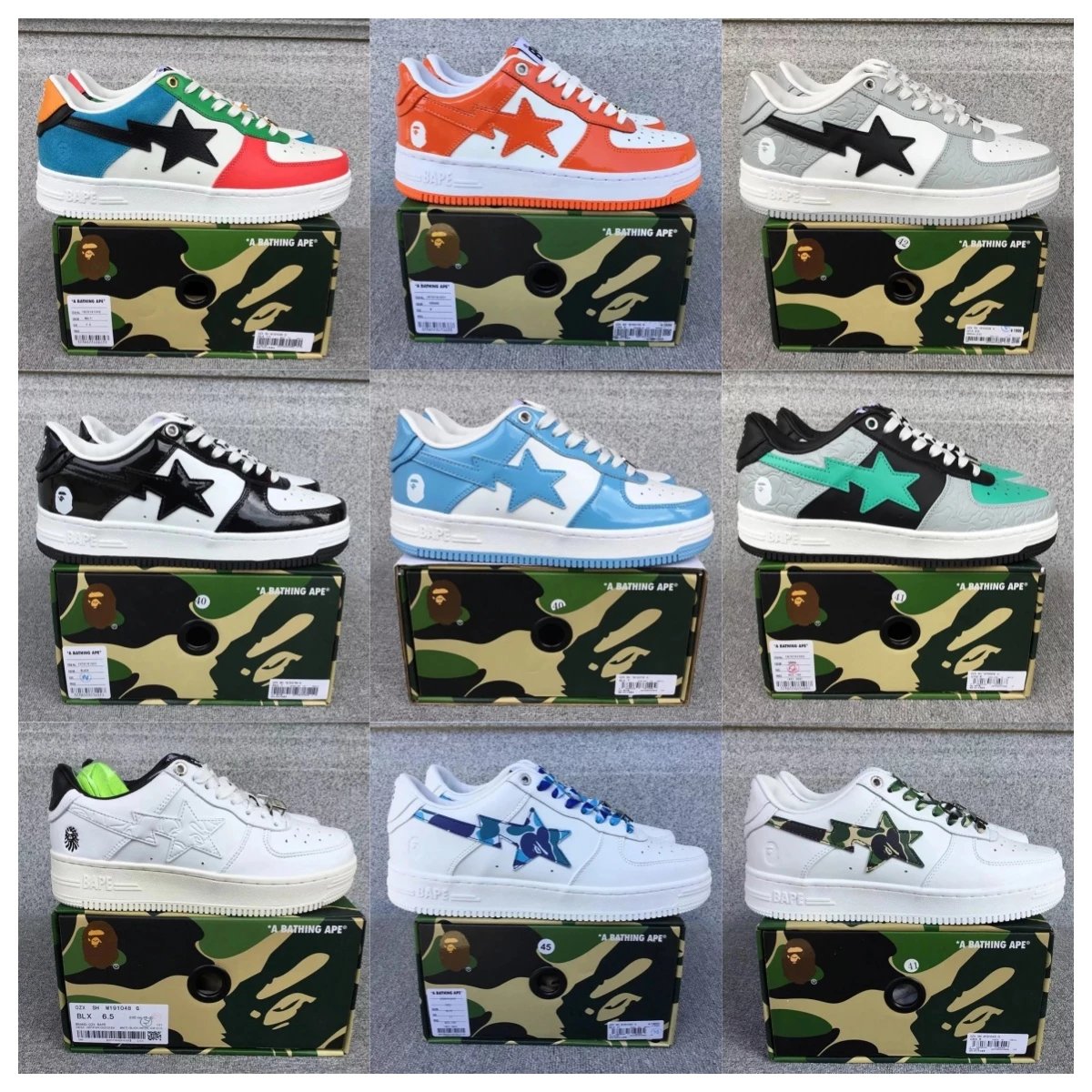
Skate Shoes SQ-002 | LoongBuy spreadsheet | Superbuy spreadsheet | Sugargoo spreadsheet - 141122
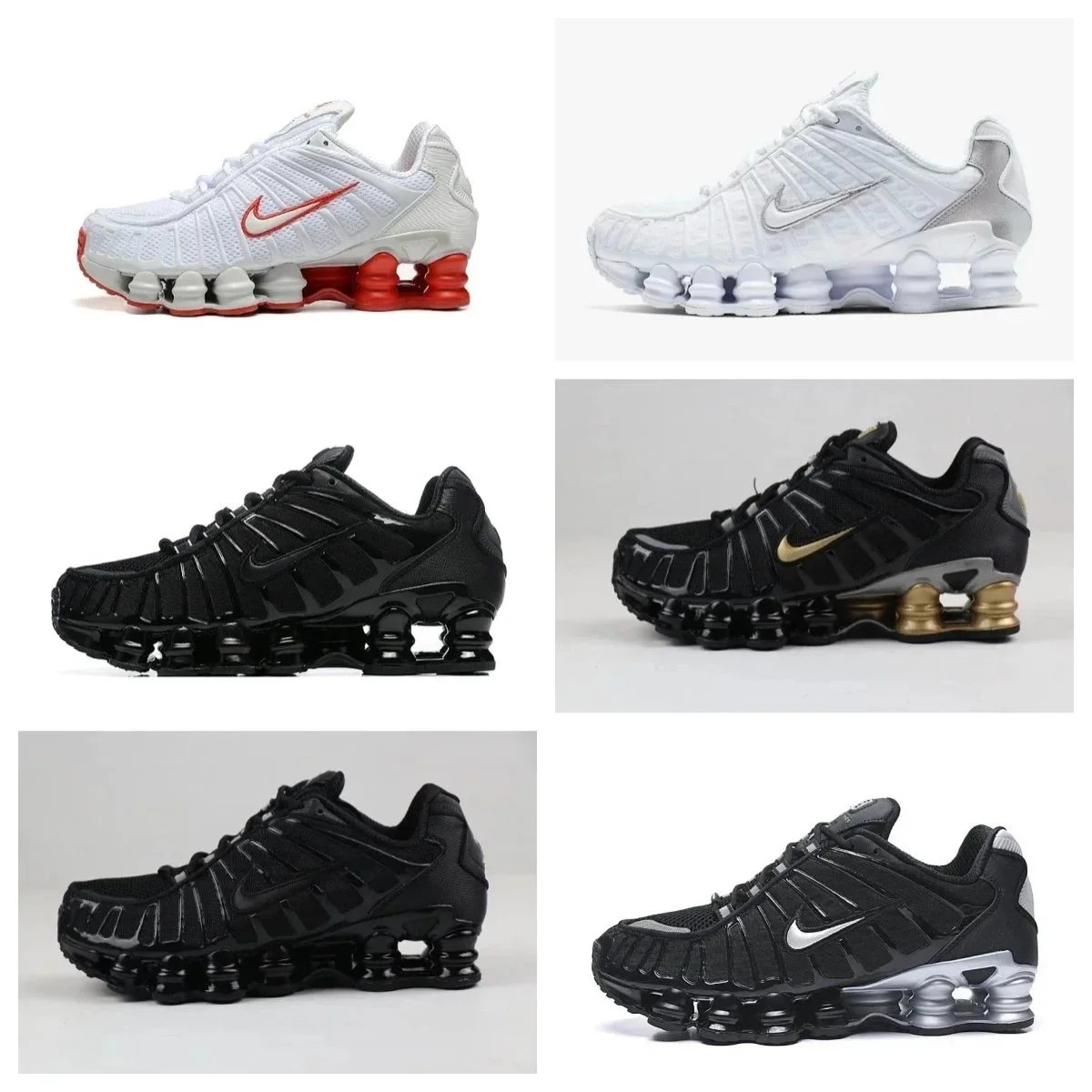
Casual Shoes | Oopbuy spreadsheet | MyCNBox spreadsheet | Sugargoo spreadsheet - 135681
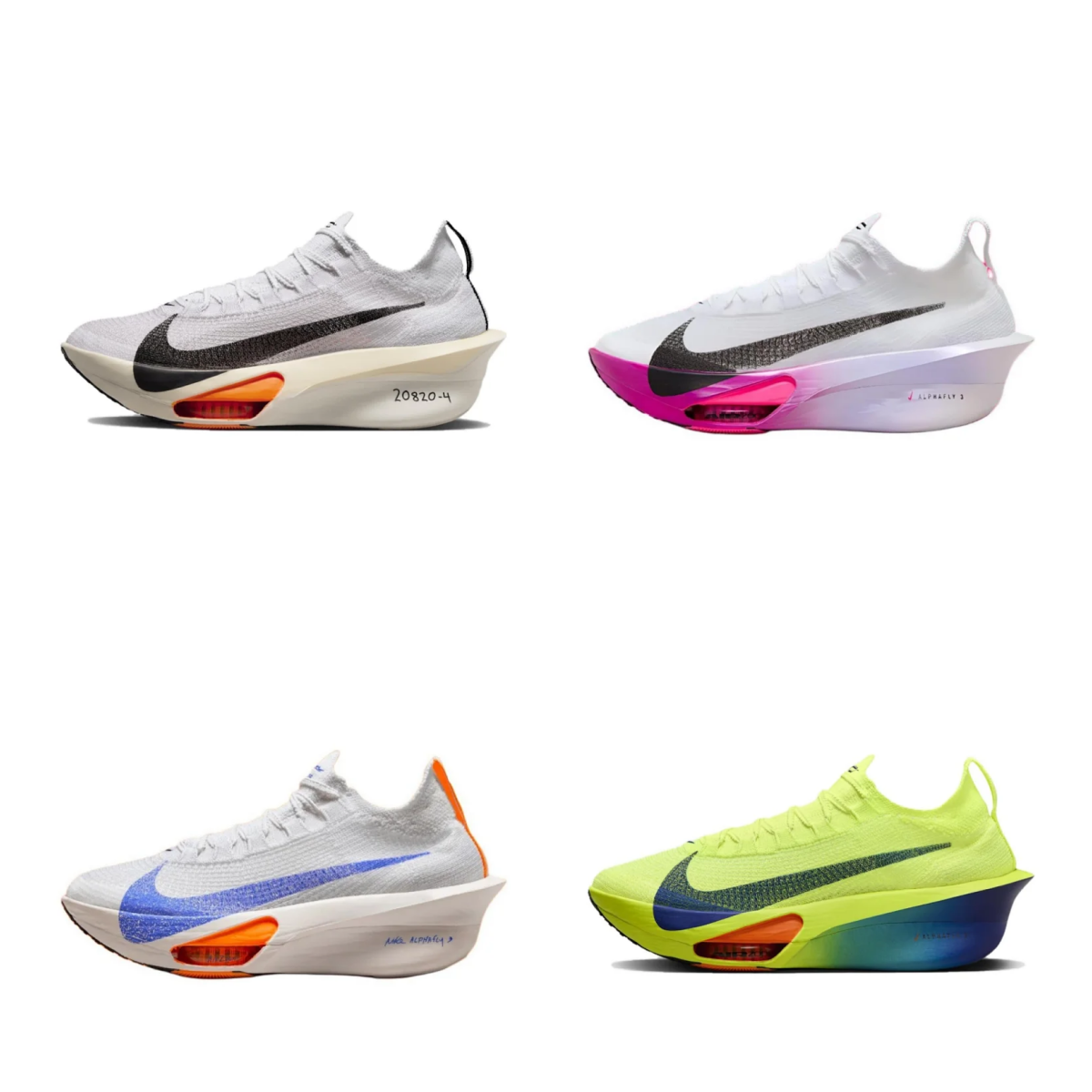
Shoes Ph076 Breathable Running Shoes | CSSBuy spreadsheet | LoongBuy spreadsheet - 136150

Platform Casual Shoes | Hubbuycn spreadsheet | Fansbuy spreadsheet - 135441
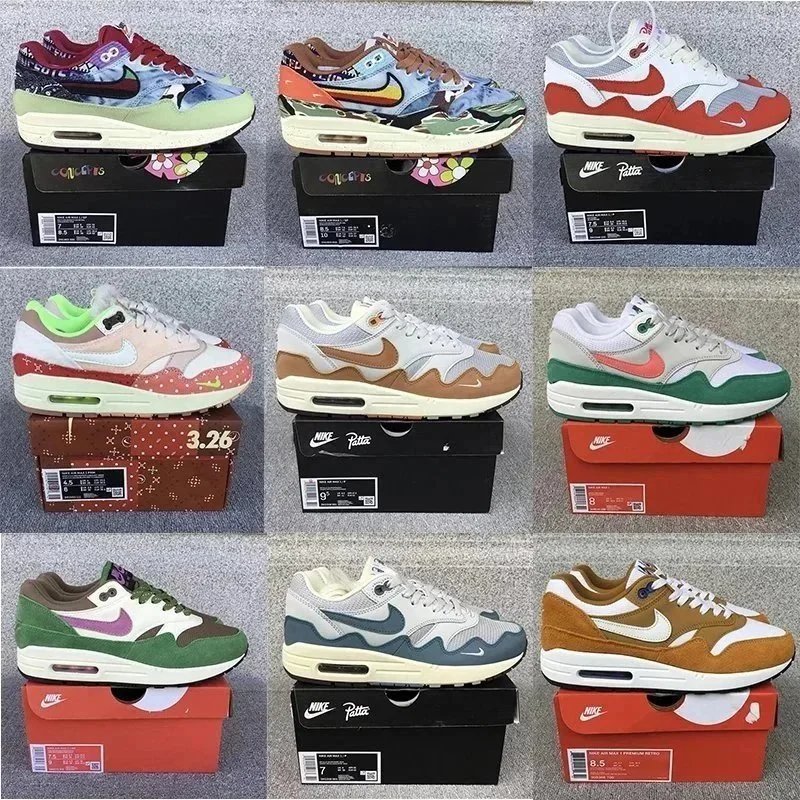
Shoes XW21 Casual Shoes | Litbuy spreadsheet | CNShopper spreadsheet | JoyaGoo spreadsheet - 136147
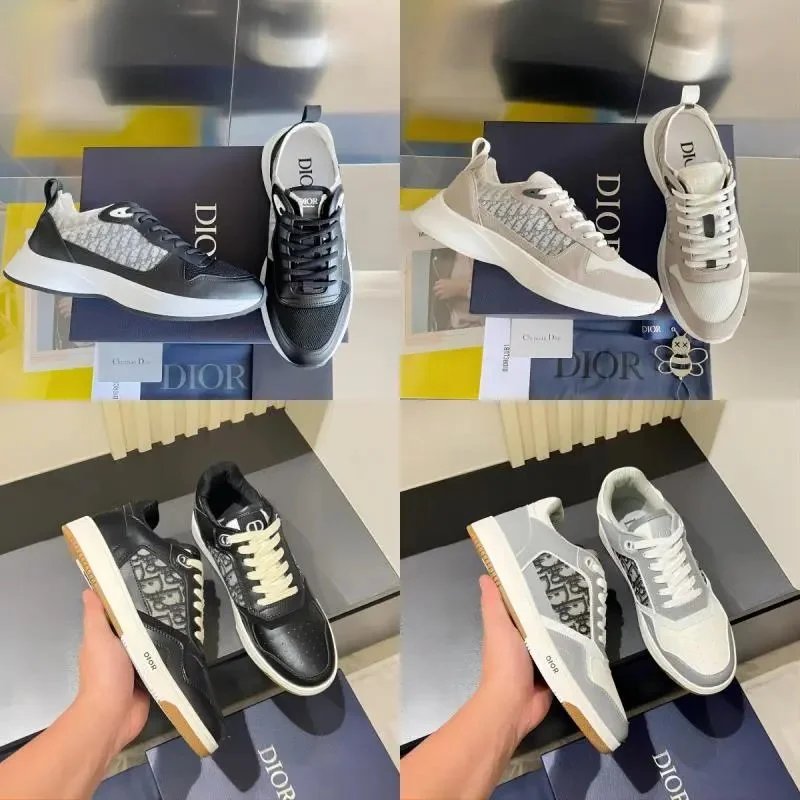
PH Running Shoes | MyCNBox spreadsheet | Hubbuycn spreadsheet - 136149
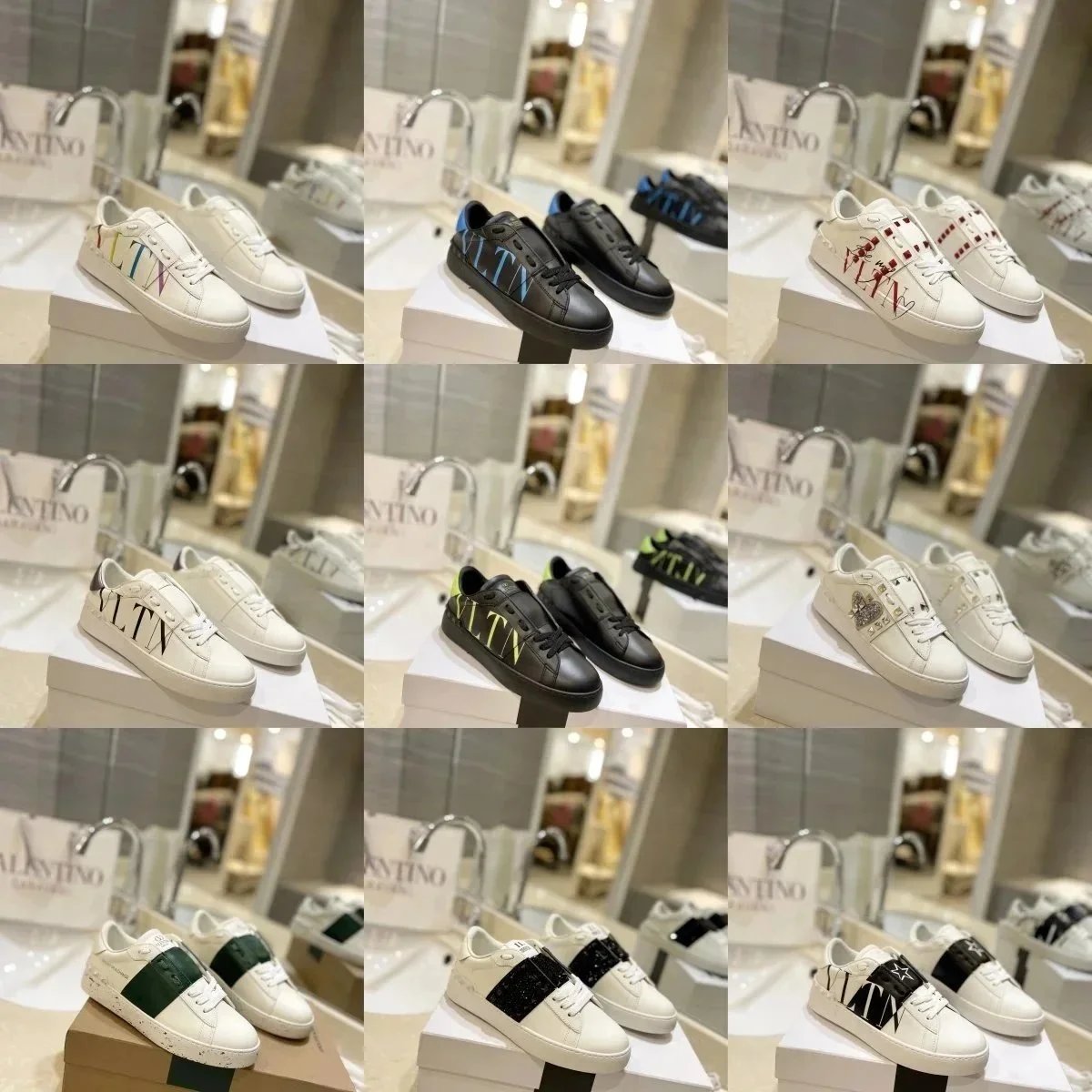
Shoes 006-RS Classic Casual Shoes | Oopbuy spreadsheet | Kakobuy spreadsheet | Lovegobuy spreadsheet - 136148