Cafans Journal
Stories & FindsThe CAFANS Guide to Spreadsheets: A Complete Handbook for Smart Shopping and Product Comparison
The CAFANS Guide to Spreadsheets: Smarter Shopping Through Structured Data
Whether you are a bargain hunter, a reseller, or simply someone who wants to stop overspending, a well-built spreadsheet is one of the most powerful tools you can own. The CAFANS approach — Collect, Arrange, Filter, Analyse, Navigate, Share — turns a blank grid into a decision-making machine. This guide walks you through building a shopping spreadsheet, a product comparison spreadsheet, and an agent shopping spreadsheet that you can reuse for years.
Why a Spreadsheet Beats a Wish List
A shopping list tells you what you want. A shopping spreadsheet tells you what it costs, where to buy it, whether it is in stock, and whether it is actually a good deal. Once you start tracking unit price, shipping cost, and return window in columns instead of memory, patterns appear fast. The spreadsheet becomes your single source of truth — a dashboard for every purchase decision.
This is the core idea behind the CAFANS method: you collect raw product data, arrange it into consistent columns, filter out noise, analyse the numbers, navigate to the best option, and share the result with family or teammates.
Step 1: Collect — Building Your Shopping Spreadsheet
Start with a single sheet called Master List. Give every product its own row and every attribute its own column. A reliable starter template includes: Item Name, Category, Brand, Model, Size/Spec, Colour, Quantity Needed, Priority, Target Price, Status, and Notes.
Use data validation on the Category and Status columns so entries stay consistent. Apply conditional formatting to highlight items marked "Urgent" in red and "Purchased" in green. Freeze the header row, add a filter to every column, and your shopping spreadsheet is ready to grow. Keep a separate tab for recurring purchases — groceries, household supplies, pet food — so your weekly restock list never gets tangled with one-off buys.
Step 2: Arrange — Structuring a Product Comparison Spreadsheet
A product comparison spreadsheet is where the real work happens. When you are choosing between three similar items — say a vacuum cleaner or a pair of running shoes — list each candidate as a row and each specification as a column. Key fields include Price, Unit Price, Warranty, Material, Weight, Energy Rating, Customer Rating, Review Count, and Seller Reputation.
Add a weighted scoring block. Assign each criterion a weight in a helper row (for example, price 30%, durability 25%, warranty 20%, reviews 15%, aesthetics 10%), then use a SUMPRODUCT formula to calculate a single score per product. The normalised score removes emotion from the decision. You can also use VLOOKUP or XLOOKUP to pull prices from a supplier tab automatically, and a pivot table to compare average prices by category or by store.
Keep a shortlist tab with only the top five options. This prevents comparison fatigue and keeps the product comparison spreadsheet focused on decisions rather than browsing.
Step 3: Filter — Sorting Out the Noise
Filters are the most underused feature in any spreadsheet guide. Use them to hide out-of-stock items, items above your target price, or products from sellers with poor ratings. Create a custom view for "Ready to Buy" and another for "Waiting for Discount." Use slicers if you are working in Excel tables or Google Sheets with connected charts — they make the sheet feel like an app.
Colour-code your rows with a simple legend: yellow for researching, blue for shortlisted, green for ordered, grey for archived. Consistency matters more than sophistication.
Step 4: Analyse — Finding the Real Deal
This is where the agent shopping spreadsheet earns its name. If you use a shopping agent or a proxy buying service to purchase from overseas marketplaces, you are dealing with multiple currencies, agent fees, consolidation shipping, and inspection costs. Build a dedicated tab that calculates landed cost: item price + domestic shipping + agent service fee + international freight + customs duty + payment processing fee.
Add columns for Exchange Rate, Agent Commission %, Consolidation Weight, and Estimated Delivery Date. A single formula can produce the true total, and a sparkline or bar chart can show how the landed cost compares across two or three agents. Always record the order number, tracking number, and inspection result — an agent shopping spreadsheet doubles as a dispute log if something goes wrong.
For recurring categories, add a price history tab. Track prices weekly and use a simple line chart to spot seasonal dips. When a price drops below the 30-day average, conditional formatting flags it automatically.
Step 5: Navigate — Formulas and Navigation Tips
A good spreadsheet guide always covers navigation. Use a table of contents sheet with hyperlinks to each tab. Name your ranges (for example, Categories, Suppliers, Budget) so formulas read clearly. Protect formula cells, but leave input cells unlocked. Use named functions, ARRAYFORMULA, and SUMIFS to roll up spending by month, by store, or by category.
Set a monthly budget cell and a spent cell using SUMIFS on the purchase log. A simple gauge or percentage bar shows how much of the budget remains. If you shop for a household, add a shared budget tab and split costs by person.
Step 6: Share — Collaboration and Backup
Share the sheet with read-only links for family members and edit access only for trusted collaborators. Use comments instead of overwriting cells. Version your file with a date in the filename (for example, Shopping_Master_2025-06.xlsx) and keep a monthly archive. Export a PDF snapshot before big shopping events so you can review decisions later.
Common Mistakes to Avoid
- Mixing units — always record currency, weight unit, and pack size.
- Forgetting shipping and tax — landed cost, not sticker price, is the real number.
- Over-building — start with ten columns and add fields only when you need them.
- Ignoring the return window — add a date column and a reminder.
- Skipping backups — one corrupted file can wipe months of tracking.
Conclusion
The CAFANS framework turns a spreadsheet from a static grid into a living shopping system. Collect your options in a shopping spreadsheet, arrange specifications in a product comparison spreadsheet, filter the noise, analyse landed costs — especially in an agent shopping spreadsheet — and share the results. Follow this spreadsheet guide, and every purchase becomes a calculated decision rather than a guess.
Editor's selection
Popular Products

Shoes Ph076 Breathable Running Shoes | CSSBuy spreadsheet | LoongBuy spreadsheet - 136150

PH Running Shoes | MyCNBox spreadsheet | Hubbuycn spreadsheet - 136149

Shoes H25 Retro Low-Top Running Shoes | UIDBuy spreadsheet | BBDBuy spreadsheet - 135631

Unisex Running Shoes | Wheebuy spreadsheet | Hipobuy spreadsheet | GTBuy spreadsheet - 135538

GZH 4115 Children's Low-Top Running Shoes | CNShopper spreadsheet | Wheebuy spreadsheet - 135738

Shoes 70W Unisex Classic Running Shoes | Hubbuycn spreadsheet | CSSBuy spreadsheet - 135408
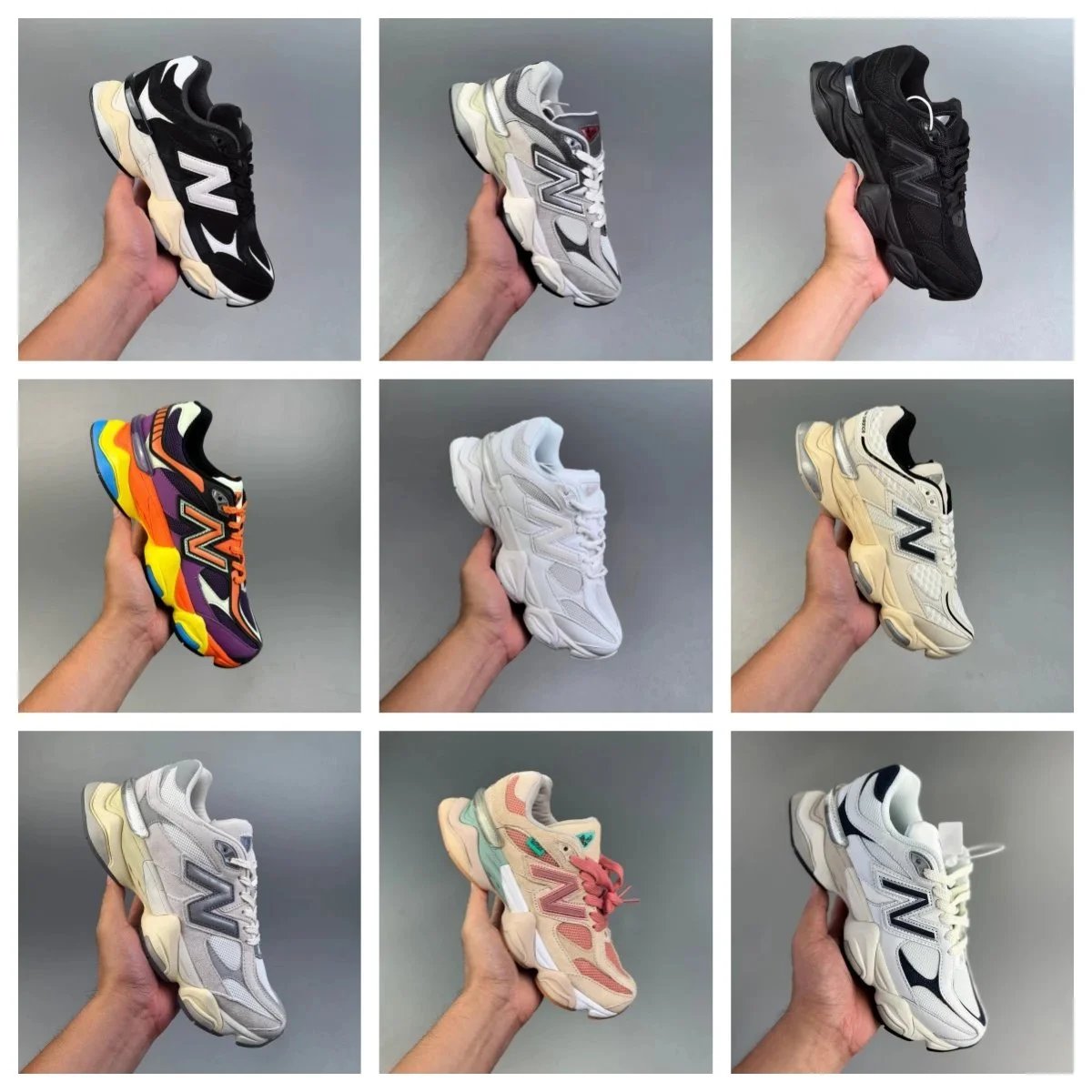
Shoes EEF 6 Unisex Classic Running Shoes | CSSBuy spreadsheet | LoongBuy spreadsheet - 135730