Cafans Journal
Stories & FindsCAFANS Guide: Mastering Joyagoo Spreadsheet Shopping
CAFANS Guide: Mastering Joyagoo Spreadsheet Shopping
Welcome to the CAFANS guide — a practical, plain-English walkthrough for anyone who wants to shop smarter using the joyagoo spreadsheet. Whether you are a first-time buyer or a seasoned reseller, this joyagoo guide explains how the spreadsheet works, how to read it, and how to turn it into a reliable buying tool. Along the way we will cover the joyagoo guide essentials, joyagoo product links, the joyagoo shopping guide workflow, and the joyagoo spreadsheet guide in detail.
What Is the Joyagoo Spreadsheet?
The joyagoo spreadsheet is a shared, tabular catalog of products. Each row typically represents one item, and each column holds a data point: item name, category, price, size chart, weight, color options, seller rating, stock status, and — most importantly — the joyagoo product links that lead to the listing page. Think of it as a shopping index maintained by the community. Because it is a spreadsheet, you can sort, filter, and compare far faster than clicking through a website one page at a time.
The CAFANS approach treats the spreadsheet as a living document. It is not a static PDF and not a single seller's inventory. It is a working list that changes as items go in and out of stock, as prices move, and as new finds are added. That is why a good joyagoo spreadsheet guide always starts with the same advice: check the date and version before you trust a row.
How to Read the Columns
Most versions of the sheet share a common structure. Here is how to interpret the core fields:
- Item ID / Row Number — a stable reference you can quote when asking questions in a community chat.
- Product Name — often abbreviated; use the link column to confirm the exact listing.
- Category — useful for filtering. Common groups include apparel, shoes, bags, accessories, home goods, and electronics accessories.
- Price — usually the listed price at the time of entry, not a guarantee. Always re-check on the product page.
- Size / Spec — size charts, dimensions, or model numbers. Critical for clothing and footwear.
- Weight — helps estimate shipping, especially for consolidated parcels.
- Seller / Store — a quick quality signal; repeat sellers with good ratings are safer bets.
- Stock Status — marked available, low, or out. Stale sheets often show items that are long gone.
- Link — the joyagoo product links column. This is the bridge between the sheet and the actual store.
If a column is missing, do not guess. Ask in the community or check the sheet's changelog tab, if one exists.
The CAFANS Workflow: From Sheet to Checkout
The joyagoo shopping guide workflow has five steps. Follow them in order and you will avoid most beginner mistakes.
Step 1: Get the Current Version
Always start from the latest shared copy. Old copies circulate widely, and outdated rows waste time. Save your own duplicate so your filters and notes do not disturb the original.
Step 2: Filter Before You Browse
Use the filter view to narrow by category, price range, and stock status. Filtering first is the single biggest time-saver in the joyagoo spreadsheet guide. A sheet with thousands of rows becomes manageable when you only see what fits your budget and size.
Step 3: Verify the Link
Open the joyagoo product links in a new tab. Confirm the item name, price, and options match the row. If the listing is dead or the price has jumped, mark the row as stale rather than deleting it — other shoppers may still want the reference.
Step 4: Compare and Shortlist
Build a shortlist tab of your own. Paste the link, note the size and color, and add a column for shipping estimate. Comparing three to five options side by side is where the spreadsheet beats manual browsing.
Step 5: Record What You Learn
After ordering, add a note: did the size run true, was the weight accurate, did the seller ship quickly? This feedback loop is what makes a community sheet reliable over time.
Common Pitfalls
New users often treat the sheet as a price guarantee. It is not. Prices change, coupons expire, and stock moves. Another common error is ignoring the weight column, which leads to surprise shipping costs on consolidated orders. A third pitfall is sharing personal order details in public tabs — keep your own notes in a private copy. Finally, beware of duplicate rows; the same item may appear under two names, so sort by link to spot repeats.
Making the Most of Product Links
The joyagoo product links column is the most valuable part of the sheet. Treat each link as a starting point, not an ending point. Once on the listing page, check the review photos, the size chart image, and the option availability. If a link redirects to a store homepage instead of a product, the listing has likely been removed. Report broken links so maintainers can update the sheet.
Safety and Fair Use
Use the sheet as a research aid. Verify seller ratings, read return policies, and pay through official channels only. Do not scrape or republish the sheet commercially without permission. Respect the community that maintains it: keep edits clean, use the comment feature for questions, and avoid overwriting other people's notes.
Quick Checklist
- Download the latest sheet and save a private copy.
- Filter by category, budget, and stock.
- Open and verify every product link.
- Shortlist three to five options with size and weight notes.
- Order through official channels and record your feedback.
That is the CAFANS guide in full. Master the joyagoo spreadsheet, respect the joyagoo guide conventions, verify your joyagoo product links, and follow the joyagoo shopping guide workflow — and the joyagoo spreadsheet guide becomes a tool you will use every shopping season.
Editor's selection
Popular Products
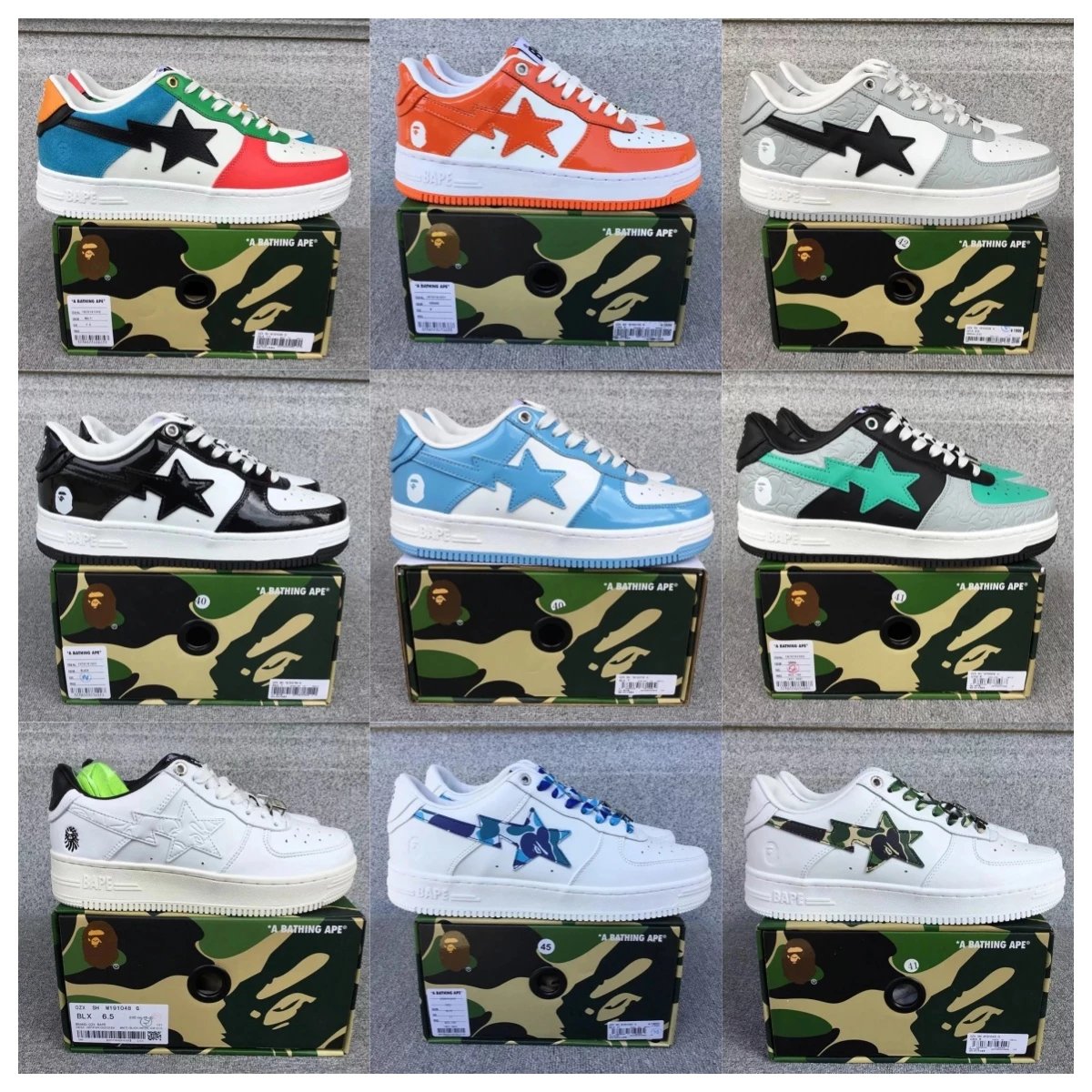
Skate Shoes SQ-002 | LoongBuy spreadsheet | Superbuy spreadsheet | Sugargoo spreadsheet - 141122
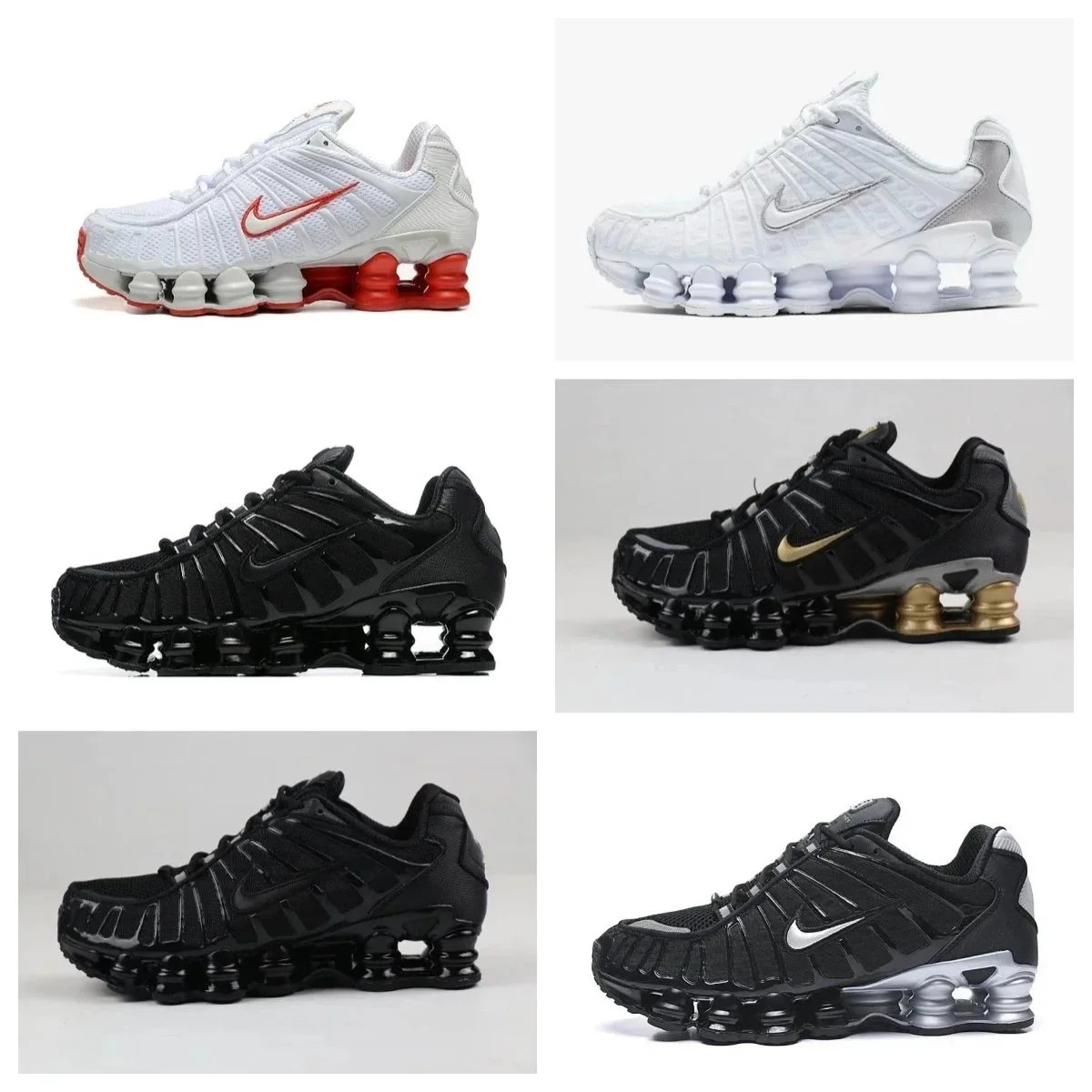
Casual Shoes | Oopbuy spreadsheet | MyCNBox spreadsheet | Sugargoo spreadsheet - 135681

Platform Casual Shoes | Hubbuycn spreadsheet | Fansbuy spreadsheet - 135441
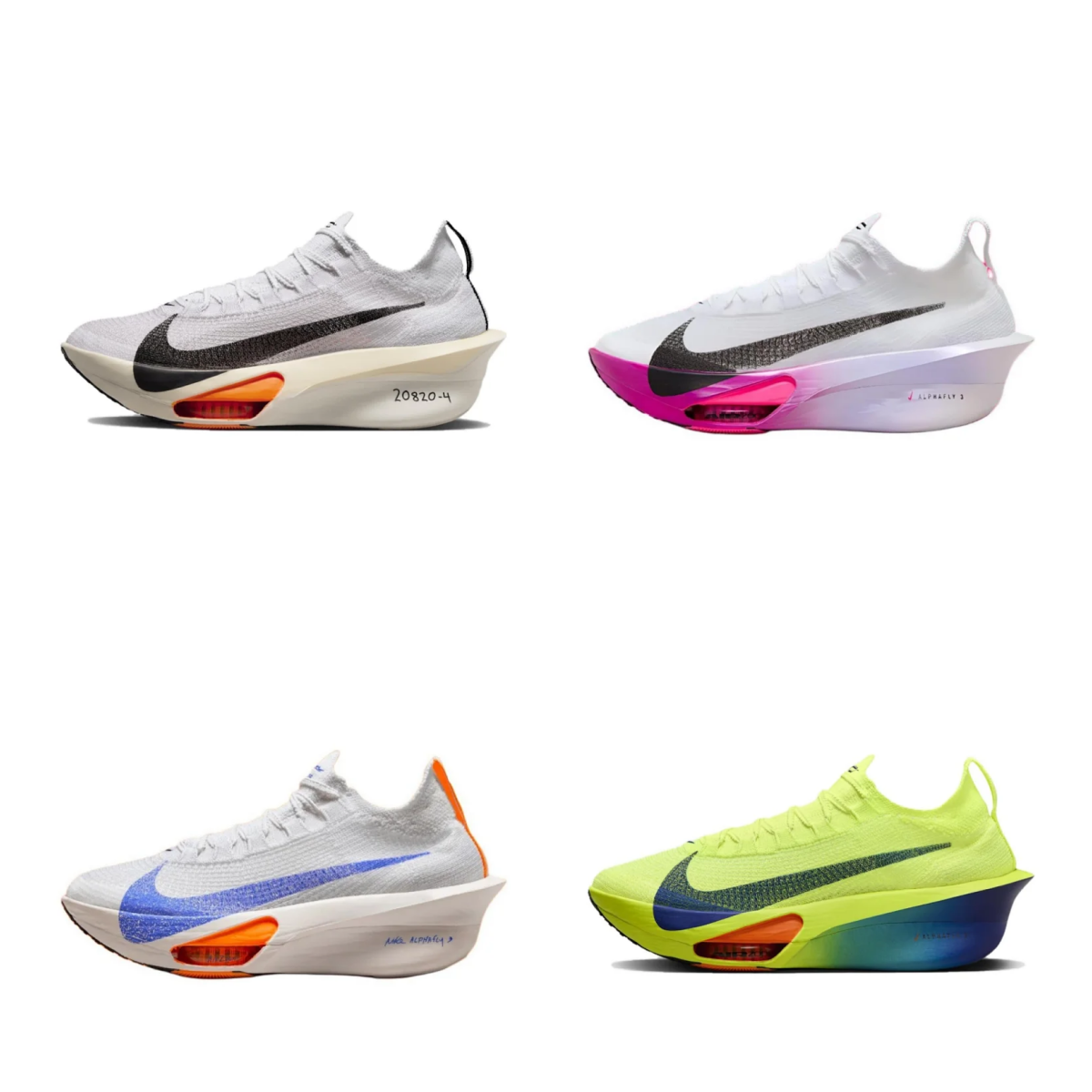
Shoes Ph076 Breathable Running Shoes | CSSBuy spreadsheet | LoongBuy spreadsheet - 136150

Shoes XW21 Casual Shoes | Litbuy spreadsheet | CNShopper spreadsheet | JoyaGoo spreadsheet - 136147
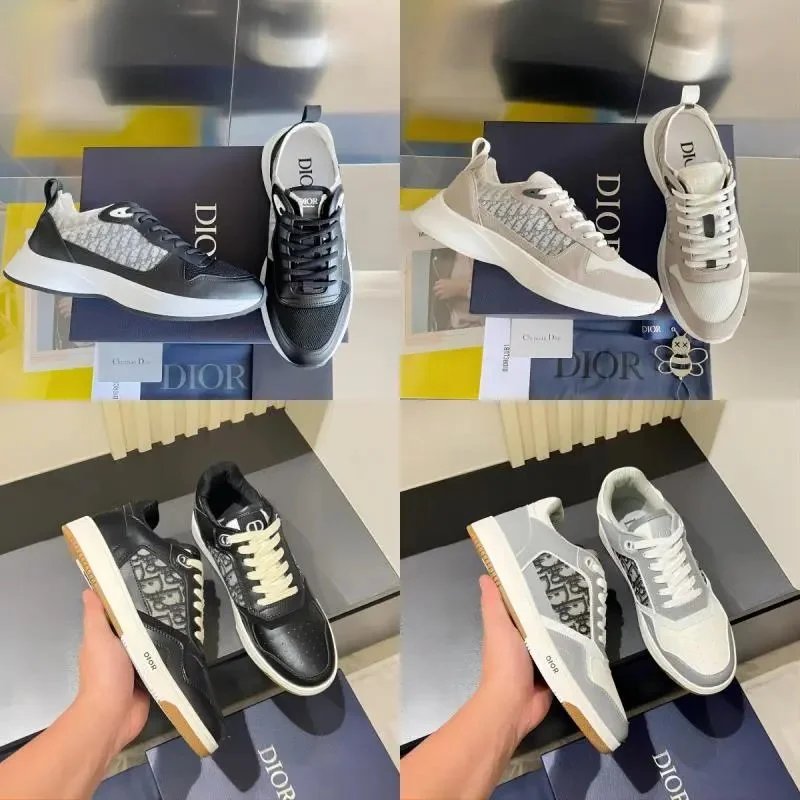
PH Running Shoes | MyCNBox spreadsheet | Hubbuycn spreadsheet - 136149
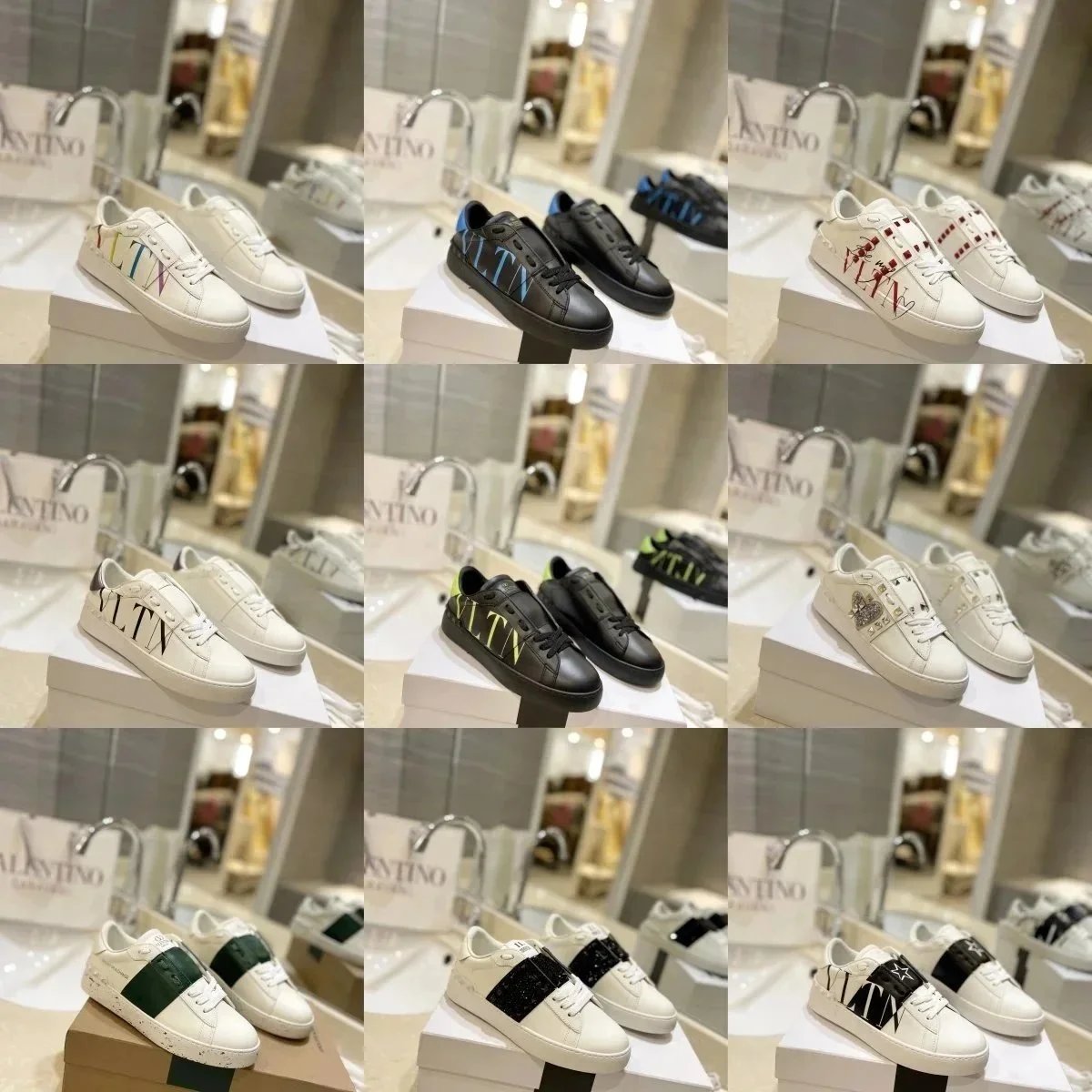
Shoes 006-RS Classic Casual Shoes | Oopbuy spreadsheet | Kakobuy spreadsheet | Lovegobuy spreadsheet - 136148