Cafans Journal
Stories & FindsCAFANS Guide: Using the Oopbuy Spreadsheet for Smarter Shopping
The CAFANS guide is a practical walkthrough for shoppers who want to get more from the oopbuy spreadsheet. Whether you are new to agent-based shopping or already familiar with the process, this guide explains how the spreadsheet works, how to read product links, and how to plan purchases without wasting time. The oopbuy spreadsheet sits at the center of the experience, but a good oopbuy guide, clear oopbuy product links, and a reliable oopbuy shopping guide all work together. This oopbuy spreadsheet guide covers the essentials in plain English.
What the Oopbuy Spreadsheet Actually Is
The oopbuy spreadsheet is a shared catalog format. Sellers and community members list items in rows, and each row typically contains a product name, a category, a price reference, available sizes or colors, and a link. The spreadsheet is not a storefront; it is an index. You use it to discover items, then follow oopbuy product links to the actual listing page where you confirm details.
Because it is a spreadsheet, it rewards careful reading. Columns may include a product ID, a batch or version note, a weight estimate, and a QC reminder. Treat every column as useful context. The oopbuy spreadsheet is most valuable when you compare rows rather than grabbing the first item you see.
Why Shoppers Use It
Three reasons dominate. First, organization: instead of scrolling endless feeds, you search a structured sheet. Second, transparency: prices, sizes, and links sit side by side. Third, community feedback: many sheets include notes about fit, material, or shipping weight. A solid oopbuy guide will always mention these advantages, and a good oopbuy shopping guide will show you how to exploit them.
The spreadsheet also supports planning. If you are building a haul, you can filter by category, estimate total weight, and check which items share similar sizing. That is the practical value behind the oopbuy spreadsheet guide you are reading now.
How to Read Oopbuy Product Links
Product links in the sheet usually point to a marketplace listing. Before clicking, note the row number so you can return. When the link opens, verify the title, the variant (size, color, version), and the price. Cross-check the spreadsheet entry against the live page; occasionally a listing changes or sells out. This habit is the core of any oopbuy product links workflow.
Keep a simple checklist: does the link match the row, is the variant available, is the price consistent, and does the description mention materials or measurements? If something is unclear, note it and move on. A careful oopbuy shopping guide never assumes a link is static.
Building a Haul with the Spreadsheet
Start by shortlisting rows. Group them by category: tops, bottoms, outerwear, footwear, accessories, bags, headwear, socks, eyewear, jewelry, home goods, stationery, phone accessories, and small electronics. Within each group, compare weight estimates and size charts. The oopbuy spreadsheet makes this comparison fast because everything is in columns.
Next, estimate shipping. Weight is the biggest variable, so sum the estimated weights and add a buffer for packaging. Many shoppers overlook this step; a good oopbuy guide will remind you that volumetric weight can differ from actual weight. Use the spreadsheet notes to flag bulky items such as shoes or padded jackets.
Finally, confirm availability. Follow the oopbuy product links, check stock, and record any substitutions. If a row is outdated, mark it and check the seller's page for a current version. This is where the oopbuy spreadsheet guide becomes a working document rather than a static list.
Quality Control and Verification
QC is the step where the spreadsheet pays off. Use the notes column to record expected details: stitching, hardware, labeling, measurements, and color accuracy. When your agent sends QC photos, compare them against the row description. If the item is a shoe, check the size tag and sole shape. If it is a jacket, check the zipper and lining. The oopbuy spreadsheet is a reference sheet, so use it as your baseline.
Keep a short log of issues and resolutions. Over time, this log becomes your personal oopbuy guide, tailored to the categories you buy most.
Common Mistakes to Avoid
First, trusting a single row without clicking through. Second, ignoring size charts because the spreadsheet looks complete. Third, forgetting to account for packaging weight. Fourth, mixing versions of the same item without noting the difference. Fifth, skipping QC comparisons. Each mistake is avoidable with a disciplined oopbuy shopping guide routine.
Another frequent error is overloading a haul. Spreading purchases across multiple shipments can reduce risk, even if it adds a little cost. The oopbuy spreadsheet helps you simulate splits by grouping rows and summing weights.
A Simple Workflow
1) Open the sheet and filter by category. 2) Shortlist rows and copy the row numbers. 3) Open oopbuy product links and verify variants. 4) Record prices and weight estimates. 5) Estimate shipping with a buffer. 6) Place orders and request QC. 7) Compare QC photos to your notes. 8) Approve, consolidate, and ship.
This loop is the heart of the oopbuy spreadsheet guide. Repeat it and the process becomes routine.
Final Tips
Bookmark the sheet, keep a backup copy, and date your notes. Follow community updates so rows stay current. Use the oopbuy guide sections for policies and the oopbuy shopping guide sections for category advice. Above all, treat the oopbuy spreadsheet as a starting point: verify every oopbuy product link, confirm every variant, and log every QC result. Done consistently, this CAFANS guide approach turns a crowded spreadsheet into a clear, reliable shopping plan.
Editor's selection
Popular Products
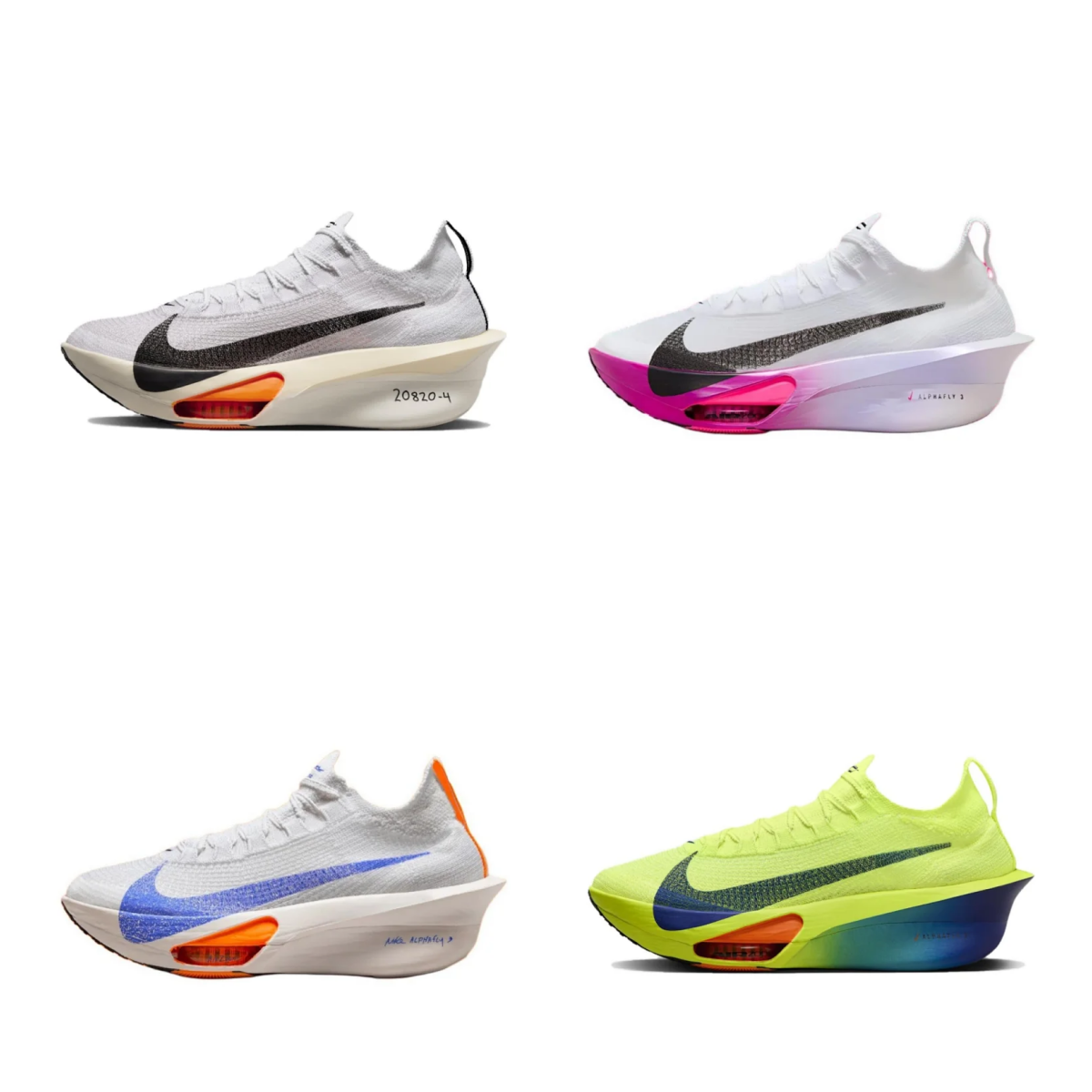
Shoes Ph076 Breathable Running Shoes | CSSBuy spreadsheet | LoongBuy spreadsheet - 136150
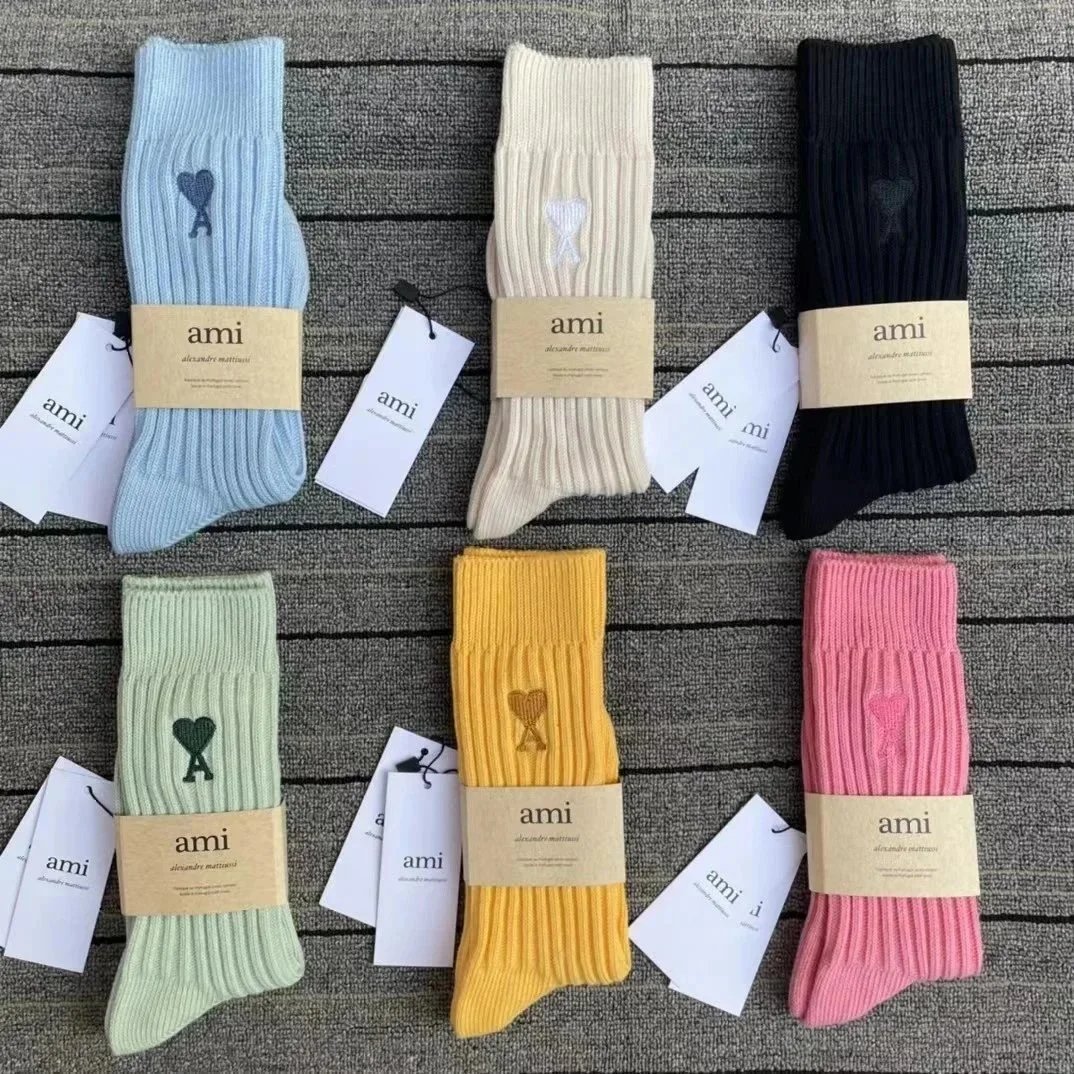
Socks SQ002 HB Unisex Black-and-White Embroidered | Fishgoo spreadsheet | JoyaGoo spreadsheet - 136281
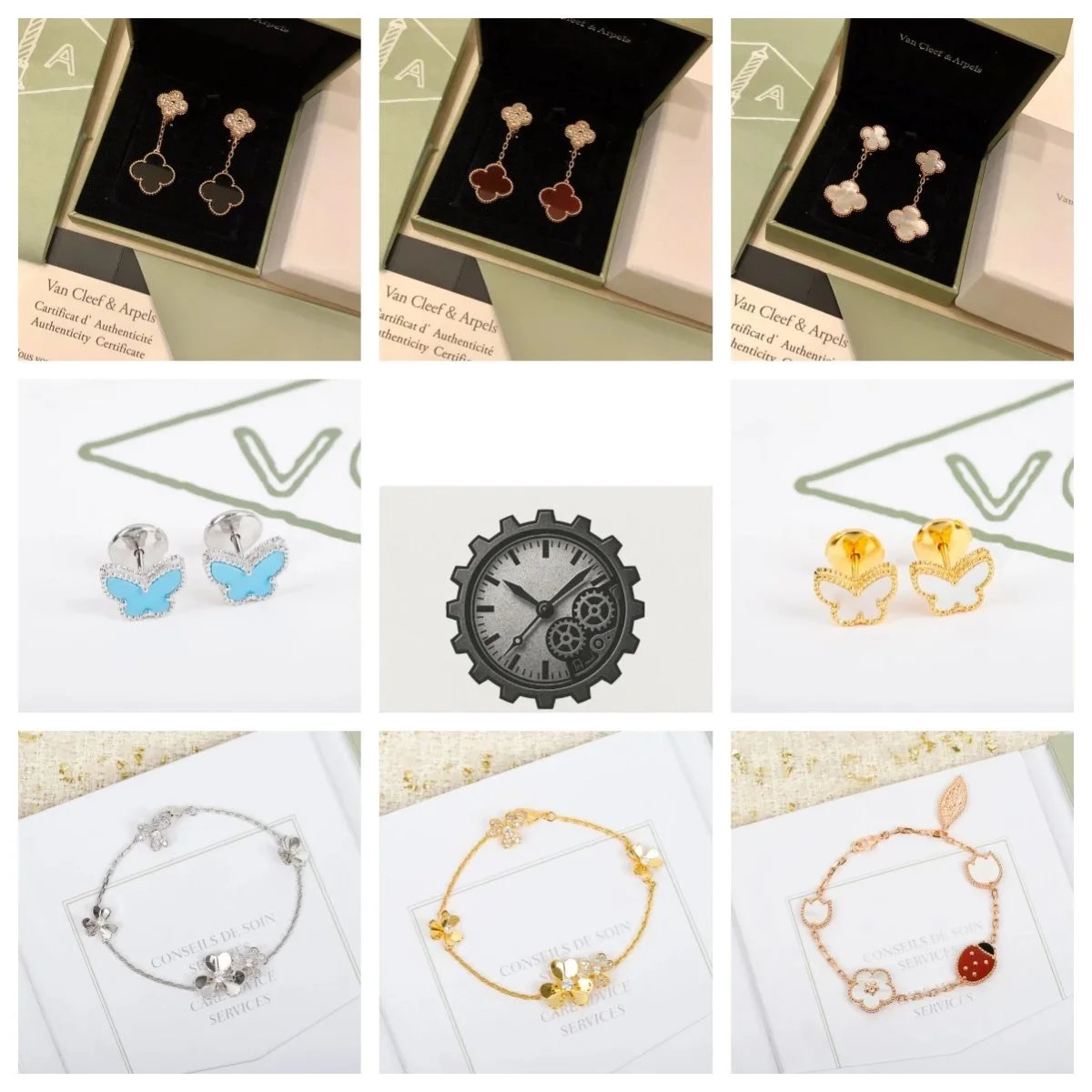
E-1 Van Cleef & Arpels Jewelry Selection | Hubbuycn spreadsheet | CNShopper spreadsheet - 137109
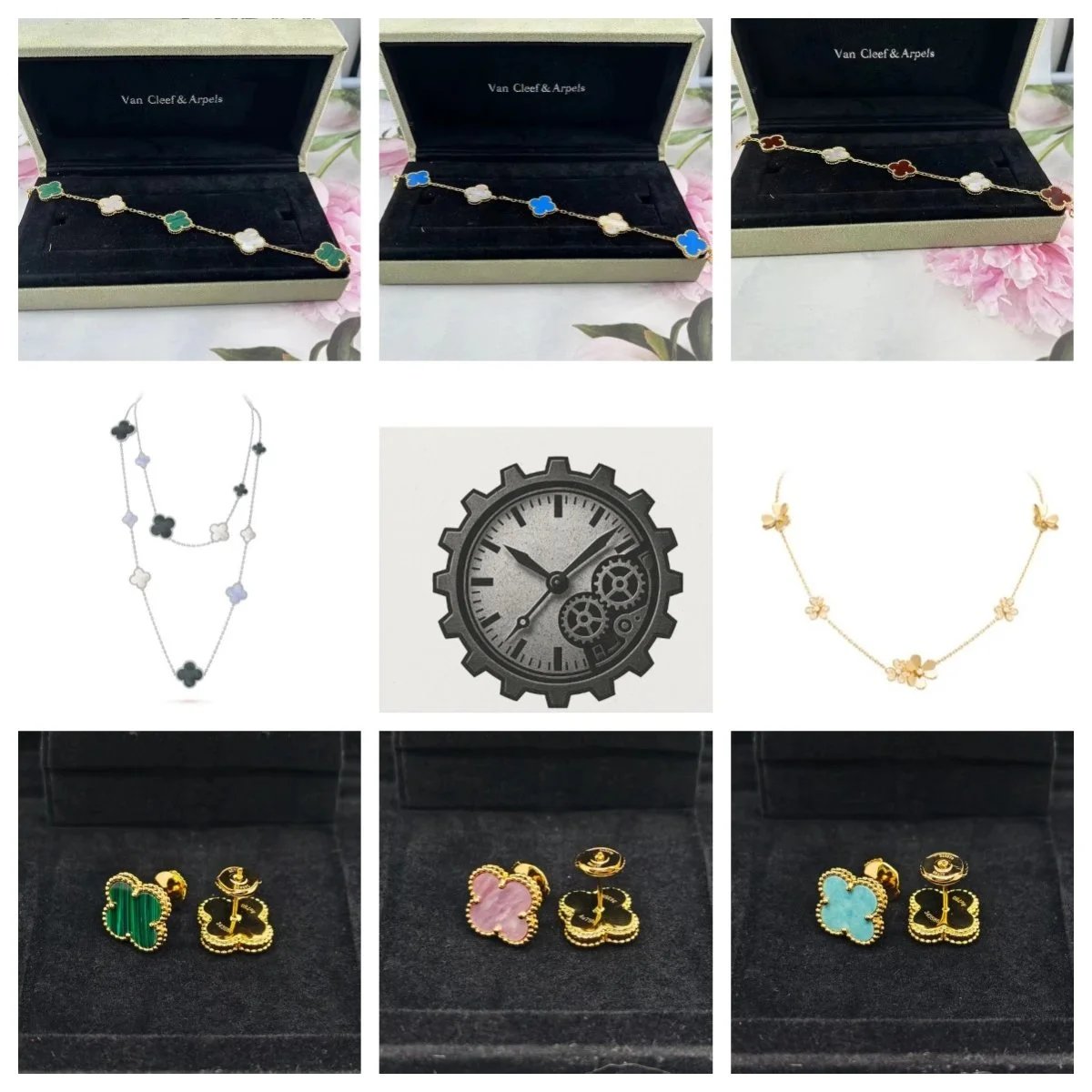
D-1 Van Cleef & Arpels Jewelry with Gift Box | Litbuy spreadsheet | MyCNBox spreadsheet - 138471
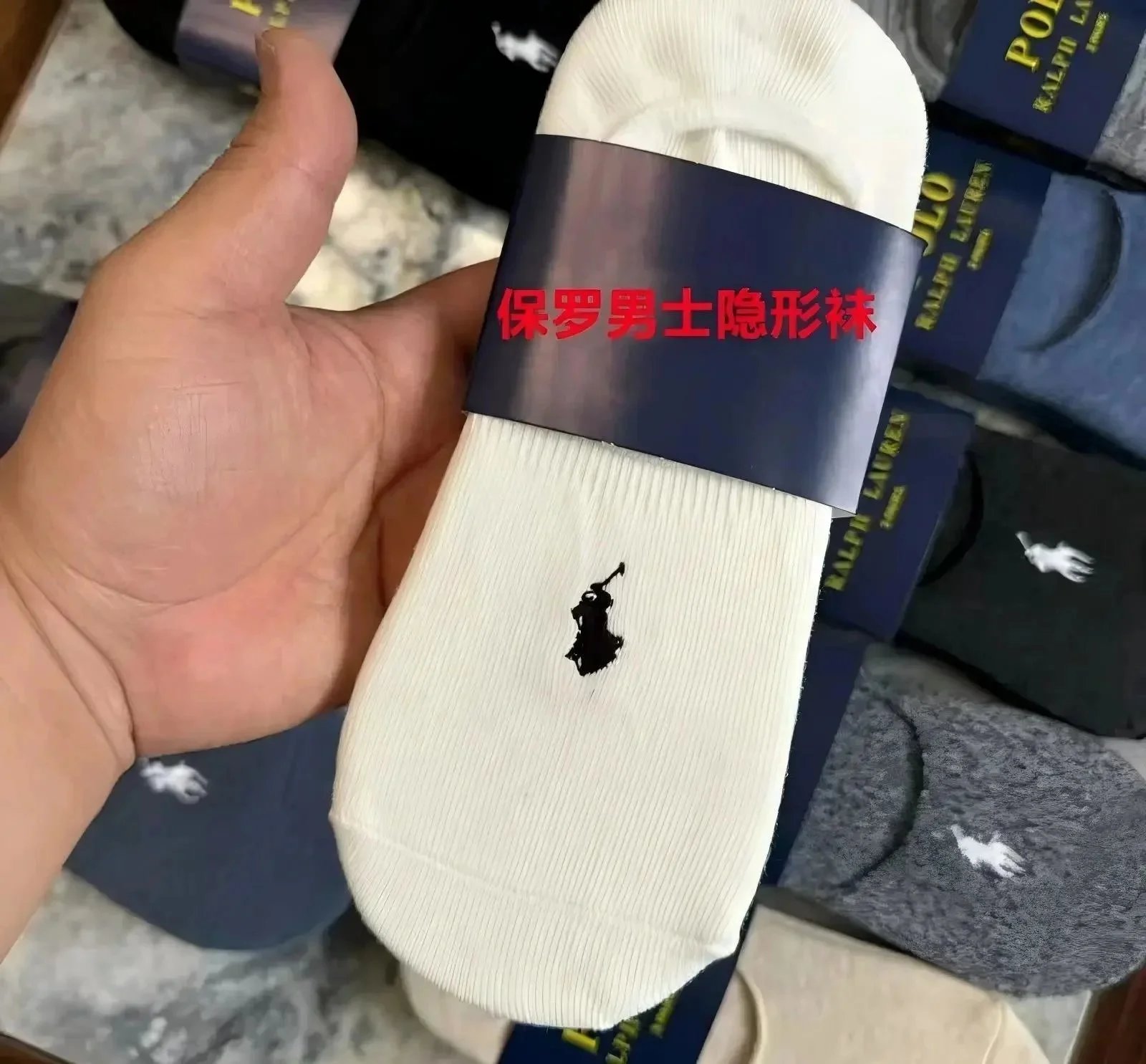
Men's Thin Non-Slip Cotton No-Show Socks with Embroidery | iTaoBuy spreadsheet | JoyaGoo spreadsheet - 137725

L Breathable Socks | Lovegobuy spreadsheet | Superbuy spreadsheet - 137854
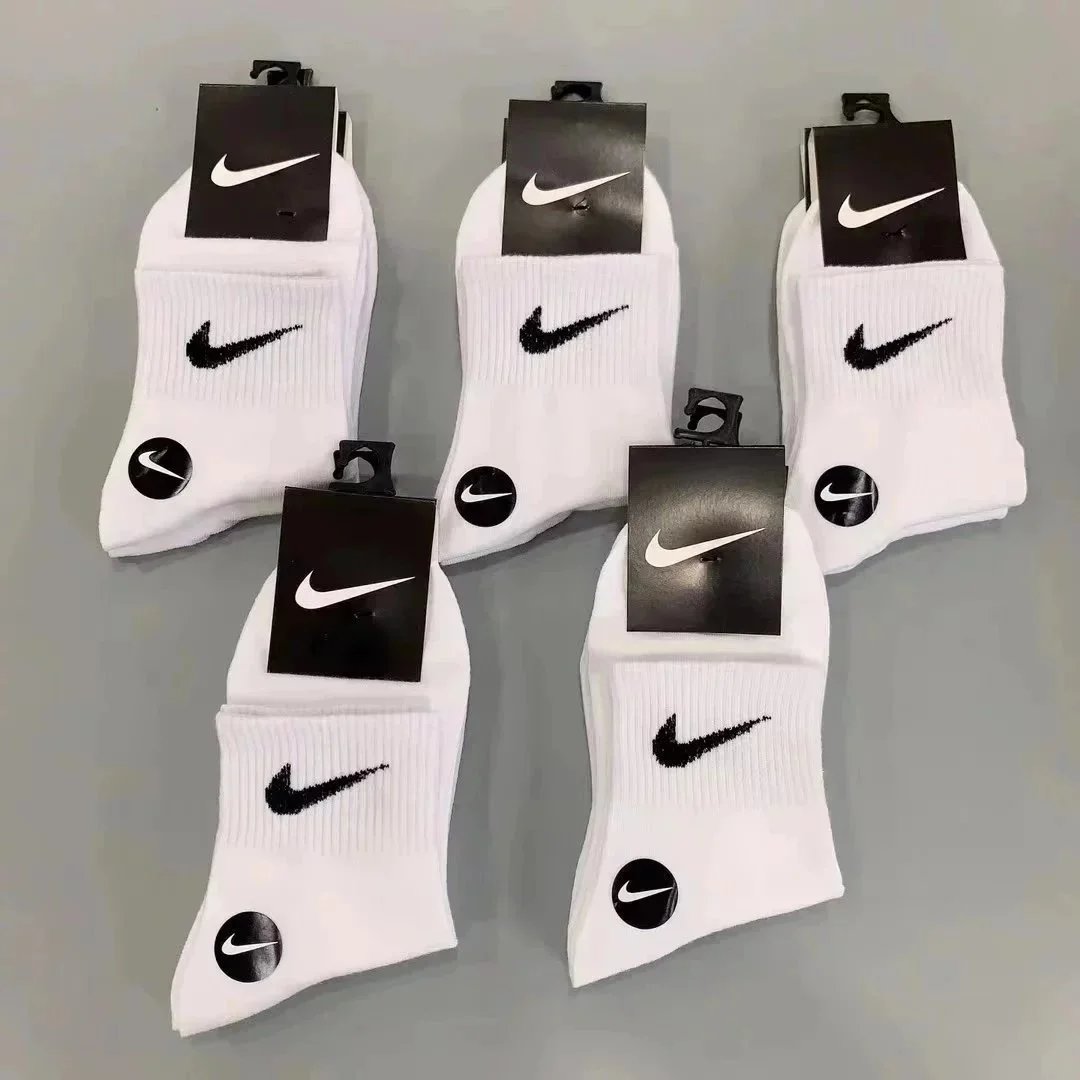
Socks Socks 01159 - 10 Pairs | MyCNBox spreadsheet | LoongBuy spreadsheet - 138416