Cafans Journal
Stories & FindsThe CAFANS Guide to Spreadsheets: Organize, Compare, and Shop Smarter
The CAFANS Guide to Spreadsheets: Organize, Compare, and Shop Smarter
Whether you are planning a household budget or hunting for the best deal on a new laptop, the humble spreadsheet is one of the most powerful tools you already own. This CAFANS guide walks you through using a spreadsheet for everyday decisions, with a special focus on shopping, product comparison, and agent-assisted buying. By the end you will know how to build a shopping spreadsheet, structure a product comparison spreadsheet, and run an agent shopping spreadsheet that keeps every option in view.
Why the Spreadsheet Still Wins
Before we get into specifics, it helps to remember why the spreadsheet remains the default tool for planning. A spreadsheet is flexible, visual, and universal. You do not need special software to start a spreadsheet; most people already have access to one. A single spreadsheet can hold a budget, a wishlist, and a comparison table at the same time. That versatility is why this spreadsheet guide treats the spreadsheet as a decision-making hub rather than just a number cruncher.
If you are new to the format, the best spreadsheet guide will always start with the basics: rows, columns, cells, and formulas. Rows run horizontally and columns run vertically, and each cell is where a value lives. Formulas let those cells talk to each other, so a change in one figure updates everything downstream. Once you grasp that, the spreadsheet becomes a living document rather than a static list.
Building a Shopping Spreadsheet from Scratch
A shopping spreadsheet is the entry point for most people. It replaces scattered notes and screenshots with one clean view of what you want to buy, where you found it, and what it costs. Start by opening a blank spreadsheet and creating a header row. Useful columns include item name, category, target price, current price, store or website, link, priority, and notes.
Next, set up data validation for the category column so your entries stay consistent. A dropdown list prevents typos and makes filtering reliable. Use conditional formatting to highlight cells where the current price is at or below your target price. This turns your shopping spreadsheet into an early-warning system: the moment a deal appears, the cell lights up.
Add a summary block at the top or in a side panel. Use a formula to total the target prices, another to total current prices, and a third to show the difference. That small dashboard gives you an instant read on whether your plan is on budget. Save the file with a clear name and a date, and keep version notes in a separate tab so you can track how your needs change over time.
Turning a Wishlist into a Product Comparison Spreadsheet
A wishlist is a start, but a product comparison spreadsheet is where real decisions happen. The goal is to compare similar items on the same criteria so you can see trade-offs clearly. Create one row per product and one column per attribute. For electronics, that might mean price, screen size, battery life, warranty length, and user rating. For kitchen gear, it might be capacity, material, dimensions, and noise level.
Keep your criteria consistent. If one product lists a two-year warranty and another lists twenty-four months, normalize the entries before you compare. Standardize units, spell out abbreviations, and use the same rating scale. A product comparison spreadsheet is only as good as the data inside it, so double-check the specification sheet and product page before you enter a value.
Weighted scoring is the secret weapon here. Add a column for weight next to each criterion, then use a formula to compute a weighted total for each product. If battery life matters twice as much as screen size, the weighted total will reflect that. Sort by the total score to rank your options. You can also add a simple chart so the comparison is visible at a glance.
The Agent Shopping Spreadsheet Workflow
An agent shopping spreadsheet is built for situations where someone else is sourcing on your behalf. This could be a purchasing agent, a personal shopper, or a colleague handling procurement. The spreadsheet becomes the shared source of truth. Include columns for requester, agent, order status, quote price, shipping cost, expected delivery, and approval flag.
Because multiple people touch an agent shopping spreadsheet, protect the formula cells and leave only input cells editable. Use a status column with values such as requested, quoted, approved, ordered, and received. Conditional formatting can color-code these statuses so anyone opening the file understands progress immediately. Add a log tab that records who changed what and when, which is essential for accountability in any spreadsheet guide.
For cross-border or wholesale buying, extend the sheet with currency, exchange rate, and duty columns. A single formula can convert quotes into your home currency so comparisons stay fair. Keep a separate tab for supplier contacts and lead times. When the agent updates a quote, the comparison and totals should refresh automatically, saving hours of manual reconciliation.
Formulas and Features Worth Learning
You do not need to be a power user, but a handful of functions will carry you far. SUM and AVERAGE handle totals and typical values. IF lets you flag conditions, such as whether a price is within budget. VLOOKUP or INDEX/MATCH pulls data from a reference table, which is perfect for a tax or shipping rate sheet. COUNTIF counts how many items meet a condition. FILTER and SORT help you build dynamic views without duplicating data.
Beyond formulas, learn freezing panes, named ranges, and pivot tables. Freezing the header row keeps labels visible as you scroll. Named ranges make formulas readable. A pivot table can summarize spend by category or store in seconds. Together these features turn any spreadsheet guide into a practical toolkit rather than a list of theory.
Organization and Maintenance Tips
Good structure beats clever formulas. Use a consistent tab naming convention, such as Dashboard, Items, Comparison, and Log. Keep raw data on its own sheet and build summaries elsewhere. Avoid merged cells in data ranges because they break sorting and filtering. Back up your file regularly, and if you share it, use comments instead of overwriting someone else's entries.
Review your spreadsheet at a fixed interval, whether weekly or monthly. Archive old versions and note what changed. A spreadsheet is a living tool, and this spreadsheet guide treats maintenance as part of the process, not an afterthought.
Common Mistakes to Avoid
Watch for inconsistent units, missing currency labels, and hard-coded numbers inside formulas. Do not compare products using different criteria sets, and do not let a shopping spreadsheet become a dumping ground with no owner. Keep one decision per tab where possible, and always verify prices before you act on them.
Final Thoughts
The spreadsheet is not glamorous, but it is dependable. A well-built shopping spreadsheet saves money, a product comparison spreadsheet saves regret, and an agent shopping spreadsheet saves coordination time. Start small, keep your criteria consistent, and let formulas do the repetitive work. That is the core of this spreadsheet guide, and it is the fastest path to smarter buying decisions.
Editor's selection
Popular Products

JY11 Esc Laptop and Travel Bag - Superbuy spreadsheet - 136544

Men's Large-Capacity Laptop and Travel Backpack - Hubbuycn spreadsheet - 138462

TF25 Digital Electronics - UIDBuy spreadsheet - 141140

LL55 Digital Electronics - Superbuy spreadsheet - 138885

XB22 Headphones and Electronics Selection - LoongBuy spreadsheet - 136779
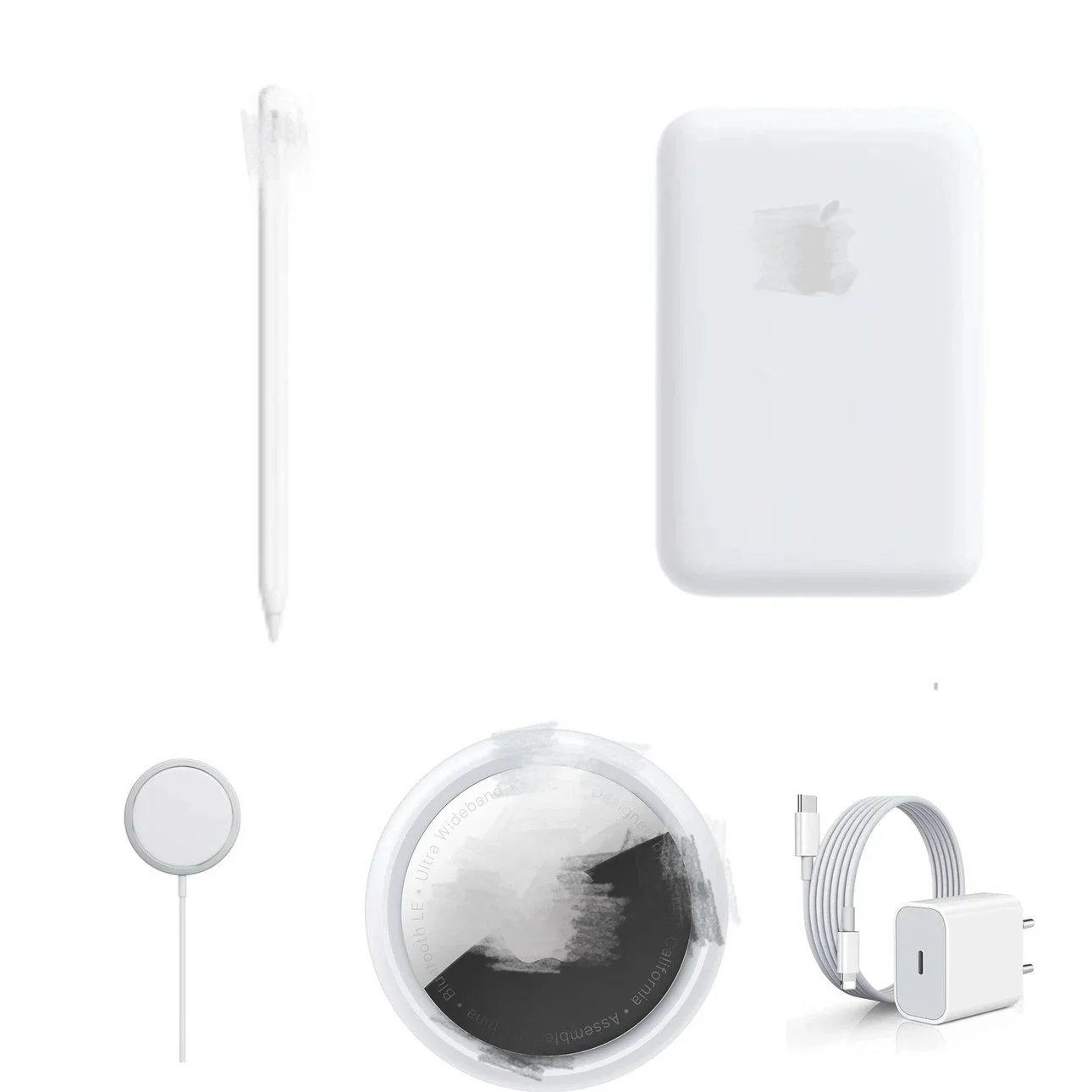
AP Charging and Electronics Accessories Selection - Fishgoo spreadsheet - 149985

0001 Electronics and Audio Selection - MyCNBox spreadsheet - 141563
