Cafans Journal
Stories & FindsThe CAFANS Guide to Spreadsheets: Organize, Compare, and Shop Smarter
If you have ever lost track of what you bought, what you plan to buy, or which option is actually the best deal, a spreadsheet is the simplest fix available. This CAFANS guide walks you through building a practical spreadsheet system for everyday shopping, product research, and agent-assisted purchases. Whether you are a first-time user opening a blank grid or someone who already keeps a shopping spreadsheet, the goal is the same: turn scattered information into a clear, sortable picture you can act on.
Why a Spreadsheet Beats Notes and Screenshots
A product comparison spreadsheet forces you to define what matters. Instead of juggling browser tabs, you list options in rows and attributes in columns. The spreadsheet guide below uses that structure throughout. Every column is a field, every row is a record, and the header row becomes your column header. Once the structure is in place, you can sort by price, filter by category, and use a formula to calculate totals. A cell reference like B2 keeps things precise, and a named range makes formulas easier to read. If you collaborate, conditional formatting can highlight the cheapest option, while a pivot table summarizes spending by category. All of this stays inside one worksheet, and a workbook can hold several worksheets for different projects.
Step 1: Design the Columns
Start with a shopping spreadsheet layout that covers the essentials: item name, category, brand, model, unit price, quantity, shipping cost, seller, warranty, rating, and notes. Add a status column (researching, shortlisted, ordered, delivered) and a link column for the product page. If you plan an agent shopping spreadsheet, include agent name, service fee, estimated delivery date, and payment status. This keeps the data entry consistent and makes later data validation possible, for example restricting the status column to a fixed list.
Step 2: Build the Comparison View
A product comparison spreadsheet works best when each candidate gets its own row and each specification gets its own column. Use freeze panes to keep headers visible, text wrapping for long descriptions, and cell formatting such as currency for prices. Apply sorting by total cost and filtering by category. A simple SUM formula calculates the landed cost (price plus shipping plus fees), and a VLOOKUP or XLOOKUP can pull reference data from a second sheet. For quick decisions, a chart comparing total cost per option is often enough.
Step 3: Use It for Agent Shopping
When you buy through an agent, the agent shopping spreadsheet becomes a tracking log. Record the request date, agent response, quoted price, exchange rate, and tracking number. A template saves time on repeat orders, and a dashboard sheet can summarize open requests and pending payments. Keep a comment or note on any row with an unresolved question, and use version history (or a dated backup copy) so you can see what changed. If multiple people update the file, sharing permissions and a clear naming convention prevent confusion.
Step 4: Maintain and Analyze
Good spreadsheets stay useful only if they stay clean. Remove duplicate rows, keep a consistent category list, and review your budget column monthly. Use a pivot table to see spending by month or seller, and a chart to spot trends. For recurring purchases, a small macro or a saved template can automate repetitive entry. Export a CSV for archiving, and keep data validation rules in place so future entries remain accurate.
Common Mistakes to Avoid
Do not mix units in one column, do not leave the header row unlocked, and do not rely on color alone to convey meaning. Avoid overly wide worksheets; split complex projects across multiple sheets in the same workbook. Finally, label every formula clearly, and test your named range references before sharing the file. With these habits, your spreadsheet becomes a reliable decision tool rather than a dumping ground.
Quick Start Checklist
Open a new workbook, add a header row, define your columns, apply data validation, freeze the top row, and build one comparison row as a test. Then duplicate the sheet as a template for your next project. That is the entire CAFANS approach: structure first, then compare, then shop with confidence.
Editor's selection
Popular Products
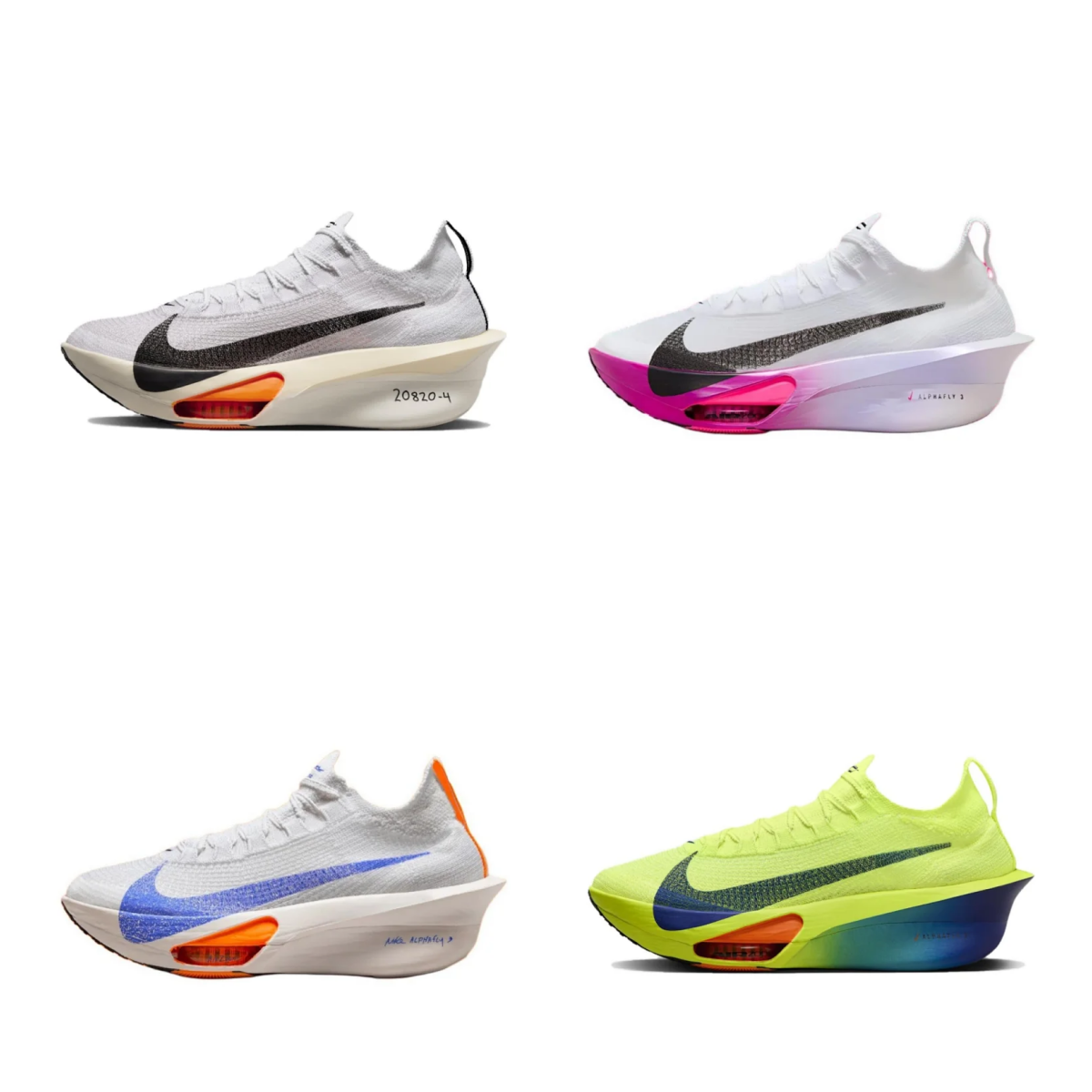
Ph076 Breathable Running Shoes - CSSBuy spreadsheet - 136150

Men's Casual Shoes - CSSBuy spreadsheet - 135435

Casual Shoes - Kakobuy spreadsheet - 136046
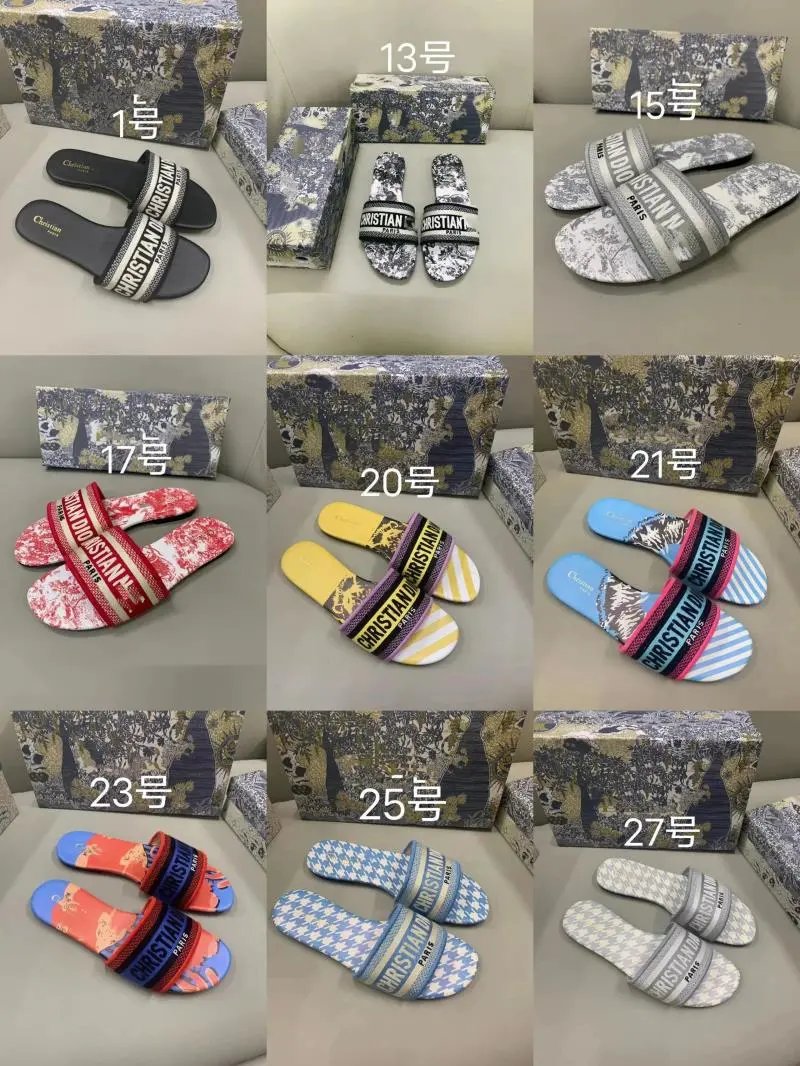
DS Slippers - Wheebuy spreadsheet - 135724

Max White Over-Ear Headphones - Lovegobuy spreadsheet - 141138

A-Max Black Noise-Cancelling Headphones - CNShopper spreadsheet - 137490

WH-1000XM5 Headphones - Wheebuy spreadsheet - 141149