Cafans Journal
Stories & FindsCAFANS Spreadsheet Guide: Build a Smarter Shopping Spreadsheet
CAFANS Spreadsheet Guide: Build a Smarter Shopping Spreadsheet
A spreadsheet is one of the most underrated tools in everyday life. Long before you buy anything, a well-structured sheet can turn scattered ideas into a clear plan. This CAFANS guide walks you through building a shopping spreadsheet, refining it into a product comparison spreadsheet, and scaling it into an agent shopping spreadsheet for bigger orders. Every section follows practical spreadsheet guide principles you can apply today, whether you use Excel, Google Sheets, or a lightweight online tool.
Why a Spreadsheet Beats a Shopping List
A plain list records what you want. A spreadsheet records what you want, what it costs, where it comes from, and whether it is worth it. The moment you add columns, your list becomes a decision tool. You can sort by price, filter by category, and compare options side by side. For anyone who shops regularly — groceries, electronics, household goods, or gifts — this structure saves money and reduces regret purchases.
The core idea of any good spreadsheet guide is simple: define the question first, then design columns that answer it. Ask yourself, "What decision am I trying to make?" If the answer is "which of these three products should I buy?", your sheet needs price, specs, ratings, and availability. If the answer is "how much will this month's shopping cost?", you need quantity, unit price, and totals.
Step 1: Set Up the Basic Shopping Spreadsheet
Start with a clean shopping spreadsheet and keep the first version minimal. Use these columns:
- Item – the product name or a short description.
- Category – group items so you can filter later.
- Quantity – how many units you need.
- Unit price – the expected cost per unit.
- Total – a simple formula such as quantity multiplied by unit price.
- Priority – high, medium, or low.
- Status – planned, ordered, or received.
Resist the urge to add twenty columns on day one. A lean sheet is easier to maintain, and you can always extend it. Freeze the header row, apply a filter, and add data validation to the Status and Priority columns so entries stay consistent. These small habits are the backbone of any reliable spreadsheet guide.
Step 2: Turn It Into a Product Comparison Spreadsheet
When you are choosing between similar products, the basic sheet is not enough. Convert it into a product comparison spreadsheet by giving each candidate product its own row and each attribute its own column. Typical attributes include brand, model, key specification, warranty length, shipping cost, seller rating, and return policy.
Use conditional formatting to highlight the lowest price and the highest rating. Add a weighted score column: assign weights to the factors you care about, multiply each factor by its weight, and sum the results. This turns a subjective choice into a transparent ranking. Keep a notes column for return windows and delivery estimates, because these details often decide the purchase.
A good product comparison spreadsheet also records the source of each price. Add a link column so you can revisit the listing. Prices change, and a comparison is only valid on the day it was made, so include a date column and refresh it before you commit.
Step 3: Scale Up With an Agent Shopping Spreadsheet
If you buy on behalf of others — family, a small team, or a community group — an agent shopping spreadsheet keeps everything accountable. This version tracks who requested what, the budget approved, the actual cost, and the delivery status. Add columns for requester name, approval status, payment method, and tracking number.
Structure matters more as volume grows. Use one tab per requester or per order batch, and a summary tab that pulls totals with formulas. Protect formula cells, and share the sheet with view-only access for requesters so they can check progress without breaking the structure. An agent sheet should answer three questions at a glance: what was ordered, what it cost, and where it is now.
Step 4: Apply Good Spreadsheet Guide Habits
Every spreadsheet guide worth reading repeats the same fundamentals, so here they are in one place. Keep one row per record and one column per attribute. Avoid merged cells in data ranges. Use consistent naming for categories. Separate raw data from summaries. Back up the file regularly. Document your formulas in a notes tab so future-you understands the logic.
Also separate planning from recording. A planning tab holds intentions; a tracking tab holds facts. Mixing them creates confusion. And review the sheet before each shopping cycle — delete stale rows, update prices, and archive completed orders.
Step 5: Common Mistakes to Avoid
Many sheets fail for predictable reasons. Overcomplicating the layout is the most common. Others include hard-coding totals instead of using formulas, inconsistent category spellings that break filters, and forgetting to record the date of a price check. Another frequent problem is sharing an editable file with too many people, which leads to accidental overwrites. Fix these early and your sheet will stay useful for months.
Step 6: A Simple Workflow to Follow
First, list items in the basic shopping spreadsheet. Second, move candidate products into the product comparison spreadsheet and score them. Third, record the final choice and budget. Fourth, if buying for others, manage the order in the agent shopping spreadsheet. Fifth, update status as items arrive and archive the completed batch. Repeat each cycle, and refine the columns based on what you actually used.
Final Thoughts
A spreadsheet is not glamorous, but it is honest. It shows you the real cost of your choices and the real status of your orders. Start small, add structure only when it solves a problem, and let the sheet serve the decision rather than the other way around. With these habits, your spreadsheet becomes a dependable companion for every shopping season.
Editor's selection
Popular Products

TF25 Digital Electronics - UIDBuy spreadsheet - 141140

LL55 Digital Electronics - Superbuy spreadsheet - 138885

XB22 Headphones and Electronics Selection - LoongBuy spreadsheet - 136779

0001 Electronics and Audio Selection - MyCNBox spreadsheet - 141563
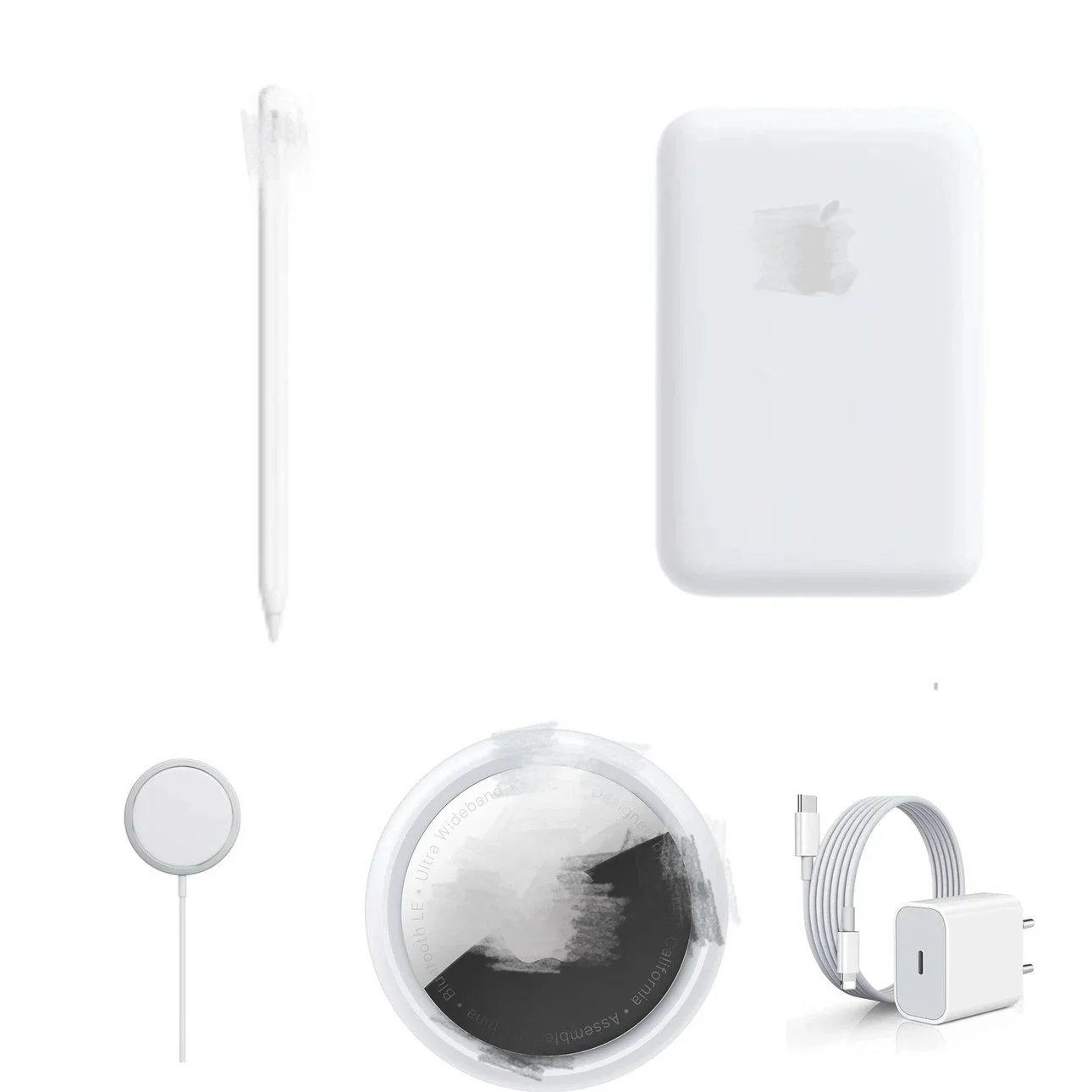
AP Charging and Electronics Accessories Selection - Fishgoo spreadsheet - 149985

OFF-WHITE Men's Relaxed-Fit Blue Arrow-Print Crewneck T-Shirt - Fishgoo spreadsheet - 136184

FZL-0427575 Embroidered Letter-Print Short-Sleeve Top - iTaoBuy spreadsheet - 143819
