Cafans Journal
Stories & FindsCAFANS Spreadsheet Guide: Build a Smarter Shopping Spreadsheet
CAFANS Spreadsheet Guide: Build a Smarter Shopping Spreadsheet
Whether you are tracking a weekly grocery run or planning a major purchase, a well-built spreadsheet can turn scattered notes into a clear, repeatable system. This CAFANS guide walks you through creating a shopping spreadsheet from scratch, then shows how to grow it into a product comparison spreadsheet and even an agent shopping spreadsheet for more complex buying decisions. The spreadsheet is the main tool here, so we will focus on structure, formulas, and habits that keep your data useful over time.
Why Use a Spreadsheet for Shopping?
A spreadsheet guide is only useful if it solves a real problem. Shopping involves many moving parts: prices change, stock levels move, and you often compare several options before committing. A simple list on paper cannot calculate a unit price or flag a budget overrun. A spreadsheet can. Using a spreadsheet gives you a single source of truth, and a good shopping spreadsheet keeps your budget, wish list, and purchase history in one place.
The CAFANS approach is deliberately practical: start small, use clear columns, and add features only when you need them. That keeps the spreadsheet guide easy to follow and the file easy to maintain.
Step 1: Set Up the Basic Shopping Spreadsheet
Open a blank workbook and create a worksheet named Wish List. Use these columns across row 1: Item, Category, Quantity, Unit Price, Total Price, Priority, Store, Stock Status, Notes, and Date Added. Freeze the header row so your column labels stay visible as the list grows.
The Total Price column should use a formula such as =C2*D2, where C is Quantity and D is Unit Price. This one formula is the heart of the spreadsheet: it removes manual math and keeps totals consistent. Add data validation to the Category and Priority columns so entries stay clean, and use conditional formatting to highlight items marked High priority.
If you shop in multiple currencies, add an Exchange Rate column and a Currency column, then calculate a normalized price in a separate column. Keep the raw entry visible so you can audit it later.
Step 2: Turn It Into a Product Comparison Spreadsheet
The next stage is a product comparison spreadsheet. Create a second worksheet named Compare. List each candidate product in its own row, and use columns for Brand, Model, Price, Shipping Cost, Warranty, Return Window, Seller Rating, and Unit Price. When specs matter, add columns for the attributes you actually care about, such as weight, capacity, or energy rating.
Use a weighted scoring model to avoid emotional buying. Add a Weight row and a Score row for each criterion, then compute a final weighted score with SUMPRODUCT. This turns a messy comparison into a transparent ranking. A product comparison spreadsheet also makes it easy to spot hidden costs: shipping, taxes, and accessories often change the winner.
Keep a Shortlist view that filters to the top three options. That keeps the comparison readable and prevents the sheet from becoming a data dump.
Step 3: Extend to an Agent Shopping Spreadsheet
If you use a buying agent, personal shopper, or proxy purchasing service, an agent shopping spreadsheet adds a coordination layer. Create a third worksheet named Agent with columns for Order ID, Agent Name, Item, Quoted Price, Service Fee, Shipping Fee, Payment Status, Order Status, Tracking Number, and Expected Date.
Add a Status column with a dropdown list (Quoted, Ordered, Paid, Shipped, Received, Issue) and apply conditional formatting to color-code each state. Use a summary block with COUNTIF to count orders by status, and a SUM of fees to see the true landed cost. This is where the spreadsheet earns its keep: agent fees and shipping are easy to forget, and a structured sheet makes them visible.
Step 4: Add Budget and Tracking Views
Create a Budget worksheet that references the Wish List totals. Set a monthly cap, then use a formula to calculate the remaining balance. Add a small dashboard with totals by category and a chart that shows spending over time. A spreadsheet guide should always include a review step: once a week, open the file, update stock status, and archive completed purchases.
Archive old rows to a History sheet instead of deleting them. History is valuable for spotting price trends and for remembering which seller was reliable.
Step 5: Good Spreadsheet Habits
- Use one row per item and one column per attribute; never merge cells in data ranges.
- Keep formulas in dedicated columns and avoid hard-coded numbers inside formulas.
- Name your ranges so formulas read clearly and are easier to audit.
- Back up the file weekly, and keep a dated copy before major edits.
- Use data validation and conditional formatting to catch errors early.
- Document your columns in a small Notes tab so the file stays understandable.
These habits matter more than advanced features. A clean shopping spreadsheet with simple formulas will outperform a complicated one that nobody updates.
Related Terms to Know
As you build and refine your file, you will encounter these terms: worksheet, workbook, cell reference, range, formula, function, SUM, SUMPRODUCT, COUNTIF, VLOOKUP, XLOOKUP, pivot table, data validation, conditional formatting, filter, sort, freeze panes, named range, absolute reference, relative reference, chart, dashboard, budget, unit price, total cost, landed cost, wish list, shortlist, purchase history, and tracking number. Each one supports the core workflow described in this spreadsheet guide.
Conclusion
A spreadsheet is not just a grid; it is a decision tool. Start with a basic shopping spreadsheet, grow it into a product comparison spreadsheet when choices multiply, and add an agent shopping spreadsheet when third parties handle your orders. Follow this CAFANS guide, keep your columns tidy, and review the file regularly. The result is a reliable system you can reuse for every purchase.
Editor's selection
Popular Products
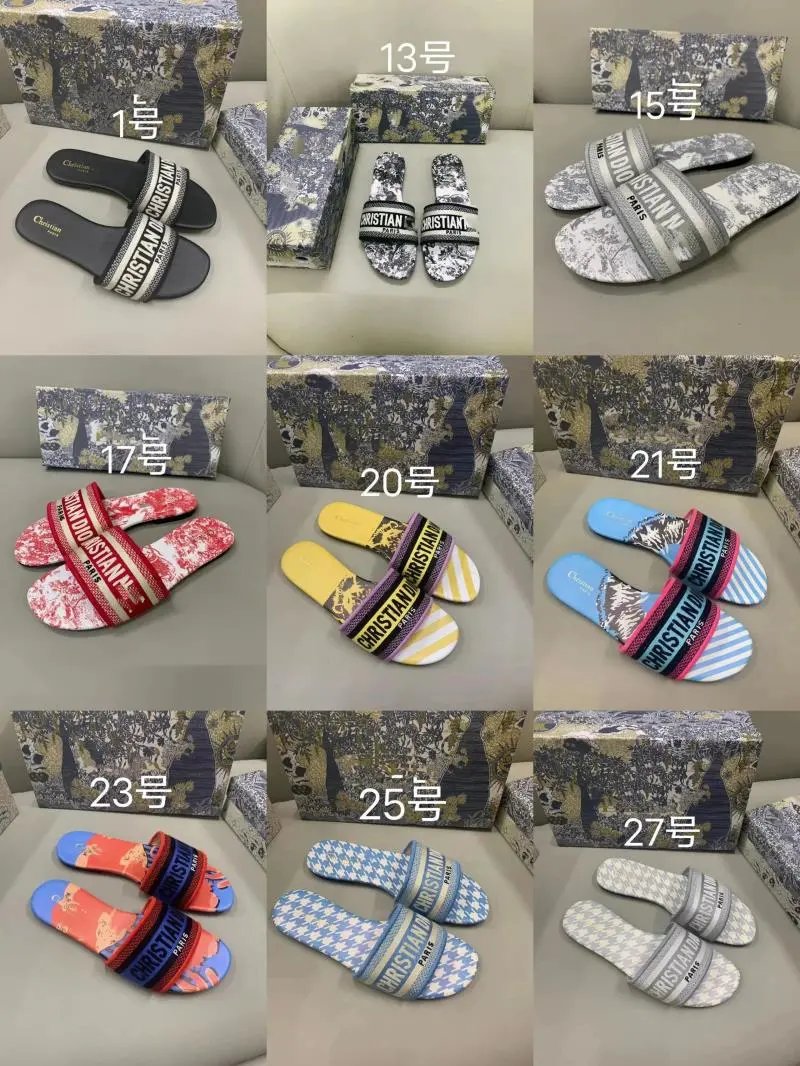
Christian Dior Men's Slippers - Stylish and Comfortable Footwear - 135724
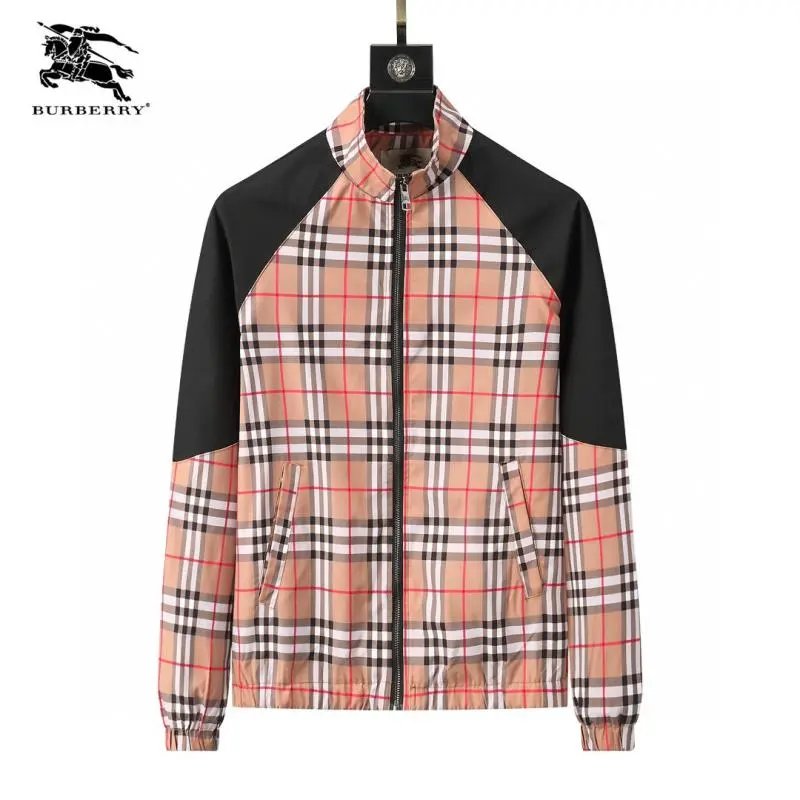
Jacket - Jacket Spreadsheet, Jacket Picks, Clothing Finds, Jacket List - 137430
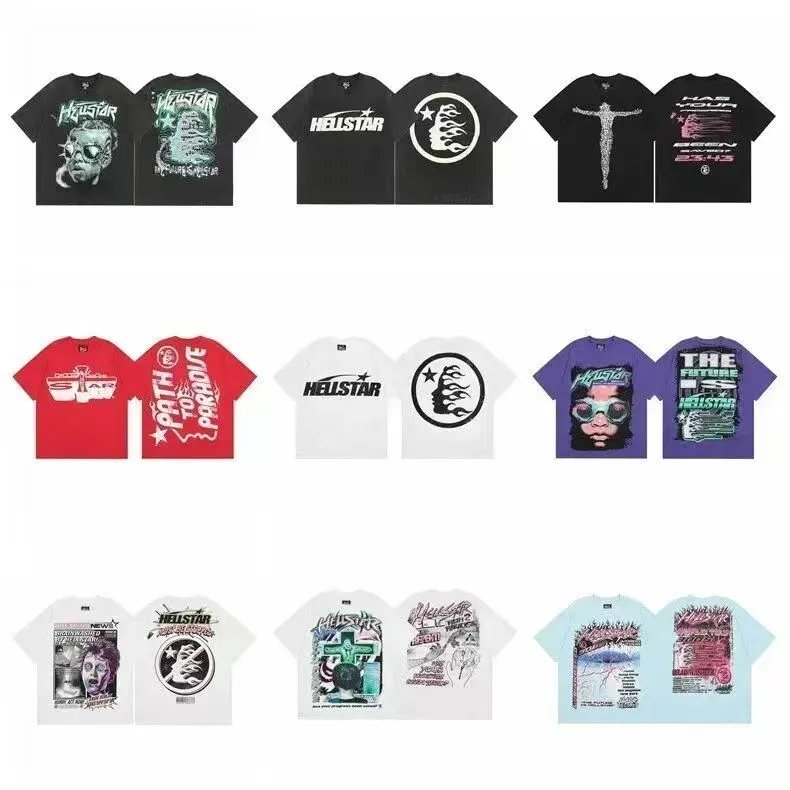
T-Shirt 006 - T-Shirt Spreadsheet, T-Shirt Finds, Clothing Picks, Clothing Finds, Tee Finds - 136910

BL Slippers S - Slipper Spreadsheet, Slipper Finds, Slipper List, Footwear Finds - 138212

Short-Sleeve Top - Clothing Spreadsheet, Apparel Finds, Clothing List - 140499
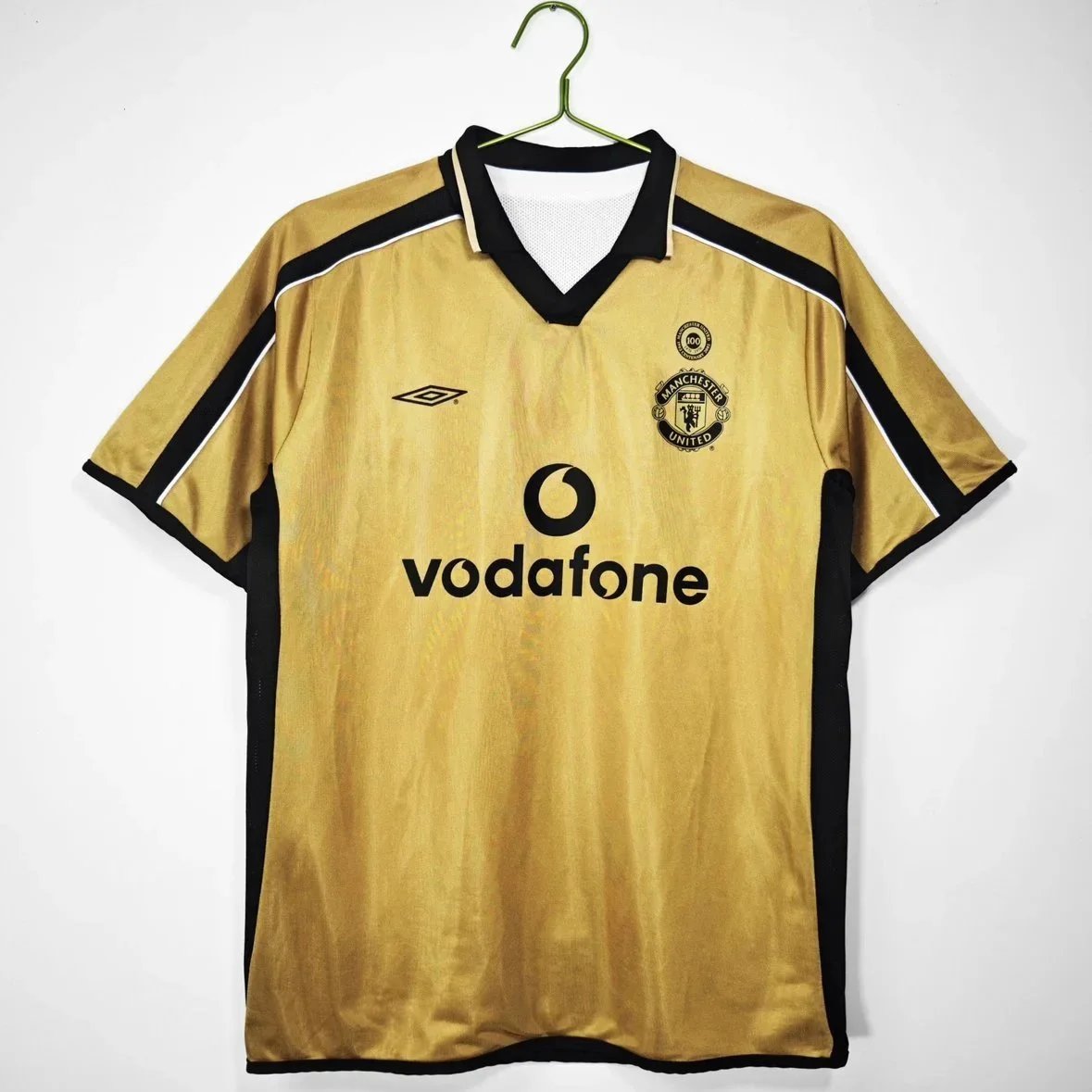
Customizable Retro Club Football Jersey - Jersey Spreadsheet, Sportswear Finds, Jersey Finds - 139558
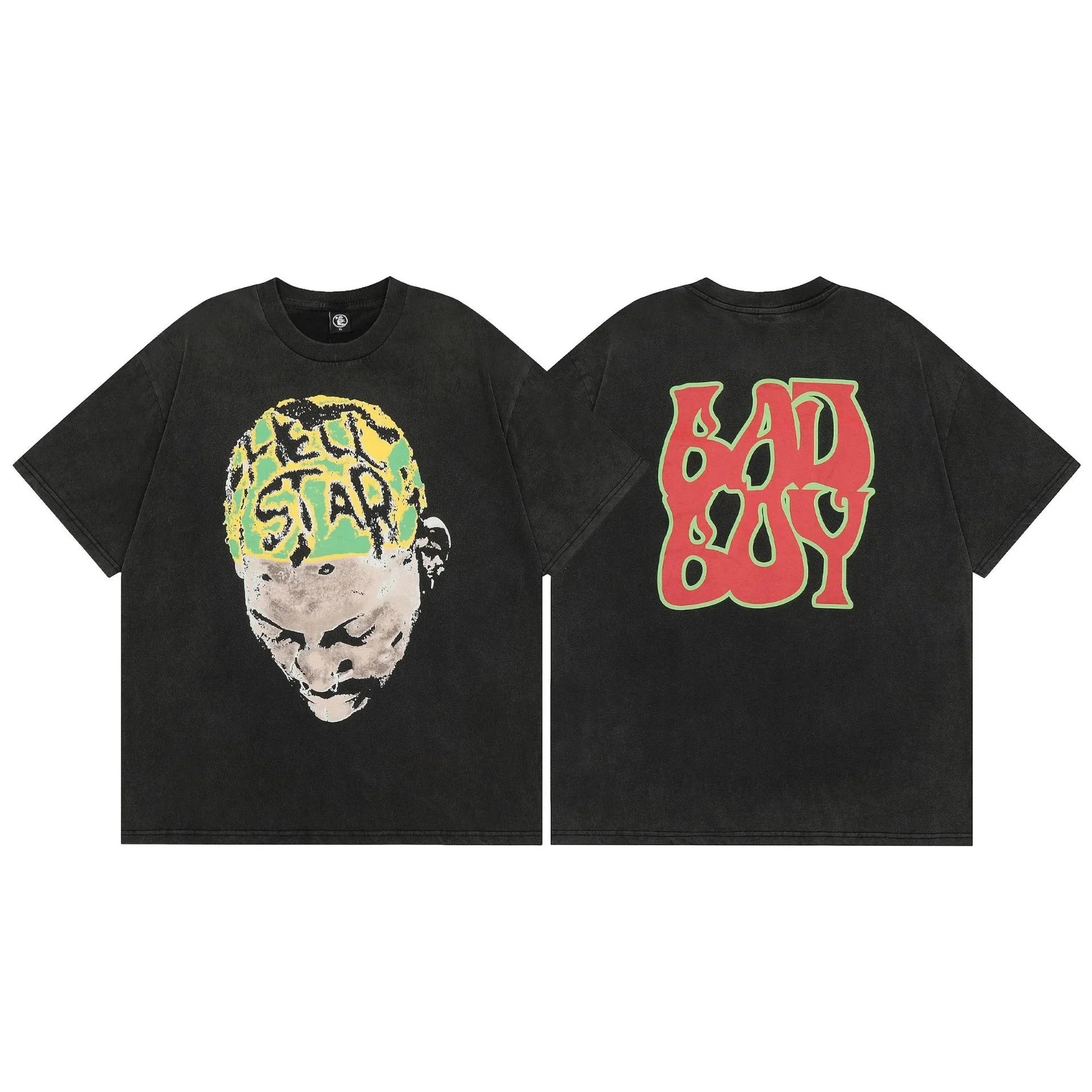
Short Sleeve T-Shirt - T-Shirt Spreadsheet, Clothing Picks, Apparel List, Tee Finds, T-Shirt Finds - 140222