Cafans Journal
Stories & FindsCAFANS Guide: Using a Superbuy Spreadsheet for Smarter Shopping
If you have been browsing agent-based shopping platforms and keep hearing about a CAFANS guide, this article walks you through the practical side: what a Superbuy spreadsheet is, how to use it alongside a Superbuy guide, and how to organize Superbuy product links so every haul runs smoothly. Whether you are new to the Superbuy shopping guide or a seasoned hauler, the spreadsheet workflow saves time, reduces errors, and keeps costs predictable.
What Is a Superbuy Spreadsheet?
A Superbuy spreadsheet is a shared or personal document that lists product links, item details, sizes, colors, prices, and warehouse notes in one place. Instead of juggling dozens of browser tabs, you paste each Superbuy product link into a row, add quantity and variation data, and track the status of every item from order to warehouse arrival. Many community-made sheets also include QC photo columns, weight estimates, and shipping line comparisons, which makes them far more useful than a simple wishlist.
In the context of a CAFANS guide, the spreadsheet becomes the backbone of your shopping plan. You can sort items by category, filter by seller, and highlight discounts before submitting orders. A well-built Superbuy spreadsheet guide typically covers column structure, link hygiene, and how to sync your sheet with parcel consolidation.
Why Use a Spreadsheet Instead of a Wishlist?
Wishlists are fine for saving links, but they rarely capture the data you need for a smooth haul. A spreadsheet lets you:
- Record exact variation details such as size, color, and model number.
- Compare prices across sellers and spot coupon opportunities.
- Track order status, domestic tracking numbers, and warehouse storage days.
- Estimate parcel weight and shipping cost before consolidation.
- Log QC findings and return or exchange decisions.
Community sheets also act as a lightweight buying guide. When someone shares their Superbuy spreadsheet, you inherit their research: trusted sellers, sizing notes, and realistic weight figures. That is why a good Superbuy spreadsheet guide is often more valuable than a generic tutorial.
How to Build Your Own Superbuy Spreadsheet
Start with a clean template. The following columns work well for most hauls:
- Item name – a short description you will recognize later.
- Superbuy product link – the full URL, pasted into a single cell.
- Category – clothing, shoes, accessories, home goods, electronics, and so on.
- Variation – size, color, and any model notes.
- Unit price and quantity – keep currency consistent.
- Seller notes – communication, stock status, or shipping speed.
- Order status – planned, ordered, paid, shipped to warehouse, stored.
- Domestic tracking – the seller-to-warehouse tracking number.
- QC result – pass, exchange, or return.
- Weight estimate – grams per item for parcel planning.
Keep one row per variation. If you order the same item in two sizes, use two rows so nothing gets lost. Add conditional formatting for status colors; green for warehouse received, amber for in transit, red for issues. This simple visual layer turns a flat sheet into a live dashboard.
Using the Superbuy Shopping Guide with Your Sheet
A Superbuy shopping guide usually explains how to search, submit orders, pay for items, and handle warehouse services. Pair those steps with your spreadsheet so each action has a matching row update. When you place an order, flip the status to "ordered" and paste the order number into the notes column. When the item reaches the warehouse, log the storage date and weight. When you request QC photos, mark the QC column so you remember to review them before the free storage period ends.
If you follow a CAFANS guide for consolidation, add a parcel tab. List which rows are going into which parcel, estimate total weight, and compare shipping lines. This prevents the classic mistake of mixing restricted items with sensitive ones or overpaying for a line that does not match your destination.
Organizing Superbuy Product Links
Link hygiene matters more than people expect. Use the full product URL, not a shortened share link that may expire. Paste links as plain text with the hyperlink attached, so you can click through later. Group links by category tab: apparel, footwear, bags and accessories, home and kitchen, electronics and gadgets, stationery, and beauty tools. Within each tab, sort by priority so your first order covers the essentials.
When you copy a link from a marketplace, double-check that it opens the correct variation. Some sellers use dynamic pages, so add a note with the exact size or color in the same row. If a link breaks, the note tells you what to search for instead.
QC Photos and Warehouse Tracking
QC photos are your last chance to catch defects before international shipping. In your Superbuy spreadsheet, reserve a column for QC status and another for photo links or notes. Review measurements, stitching, logos, and color accuracy. If something looks wrong, request an exchange through the platform and update the row. Keep an eye on free storage days; the sheet should show arrival dates so you can consolidate before fees apply.
Weight Estimates and Shipping Decisions
Weight is the biggest cost driver. Add a grams-per-item estimate based on seller listings or community data, then sum each parcel tab. Compare volumetric weight for bulky items and choose a shipping line that fits your budget and timeline. A spreadsheet makes it easy to test scenarios: remove a heavy item, split into two parcels, or switch lines, and see the impact instantly.
Common Mistakes to Avoid
Do not rely on memory for variations; write them down. Do not mix currencies in the price column. Do not ignore seller communication notes, especially for pre-sale items. Do not skip the domestic tracking column; it is your proof when a parcel goes missing. And do not treat a shared sheet as gospel: prices and stock change, so verify before ordering.
Final Thoughts
A Superbuy spreadsheet turns chaotic haul planning into a repeatable process. Combined with a solid Superbuy guide and careful link management, it helps you order confidently, track every item, and ship without surprises. Start with a simple template, refine it after each haul, and share your improved version with the community. That is the essence of a practical CAFANS guide: build a system, document it, and make every future order easier.
Editor's selection
Popular Products
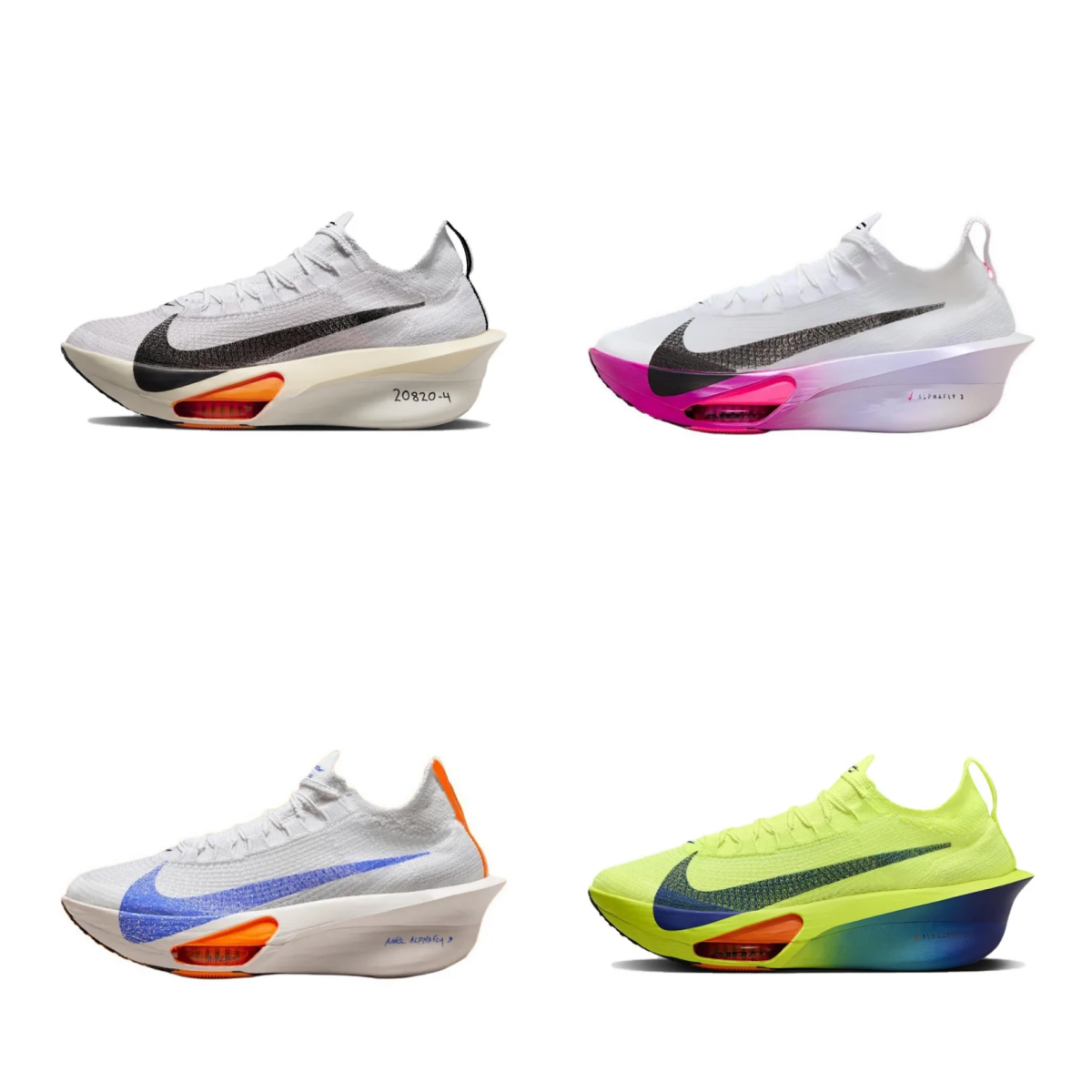
Nike Air Zoom Alphafly NEXT% Running Shoes - 136150
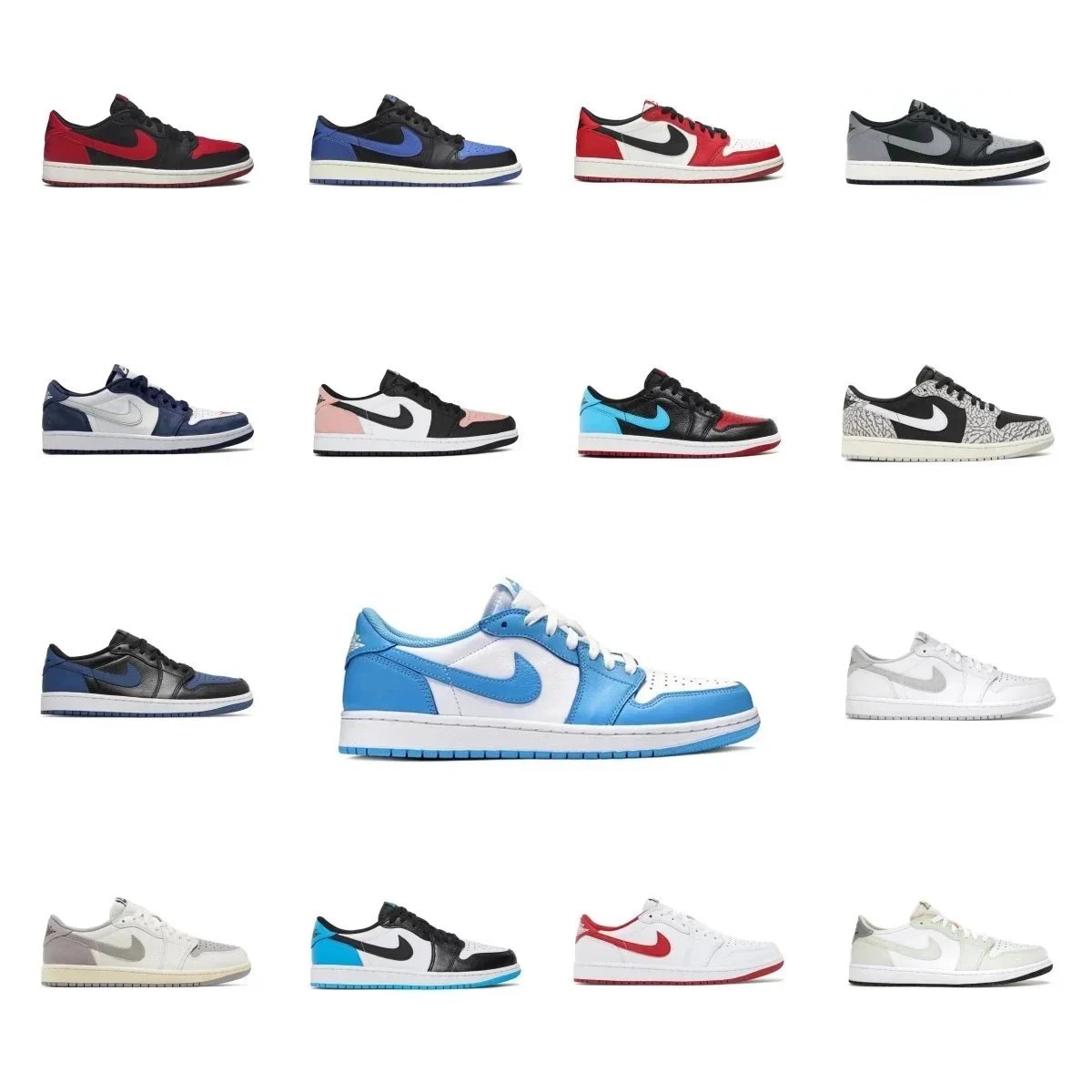
Nike Air Jordan 1 Low Sneakers - Various Colors and Styles - 135708

Prada Red and Grey Sneakers - Comfortable and Stylish Athletic Shoes - 135435

Adidas Originals Pro Model 2G White High-Top Sneakers - 136046

SuperAm Retro Running Shoes - Comfortable and Stylish Sneakers for Men and Women - 136139
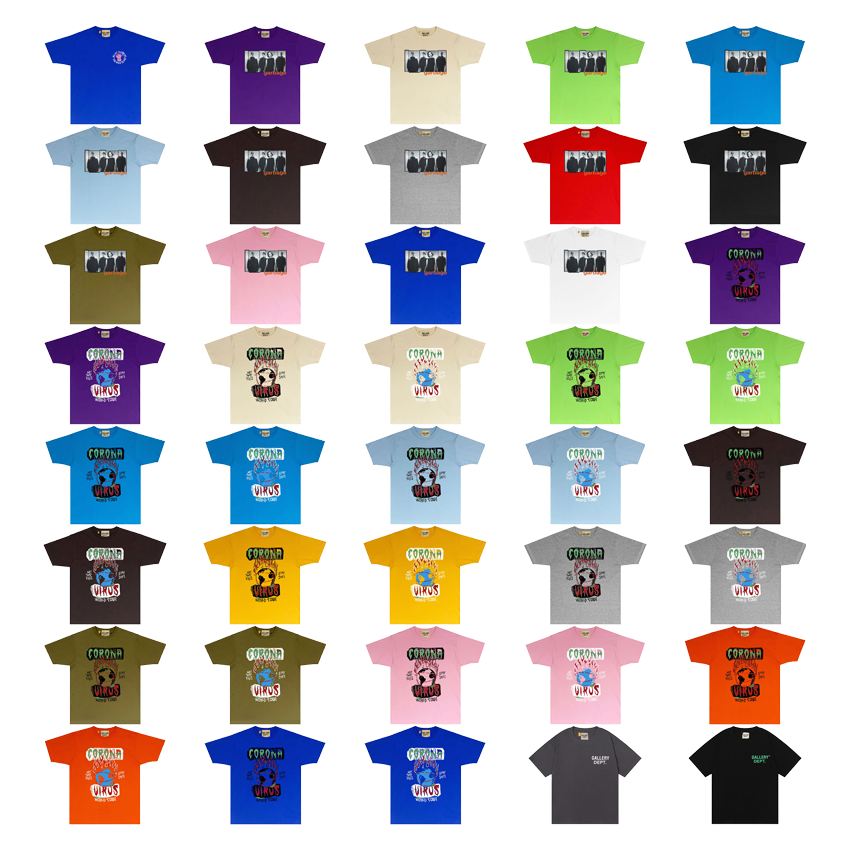
G*ALLERY *DEPT Short-Sleeve Top 11 - Clothing Spreadsheet, Clothing Finds, Apparel Picks, Clothing List - 140501

rs Bag Collection - Bag Spreadsheet, Accessory Finds, Bag Finds, Fashion Finds - 137172